Adding or removing watermarks doesn’t have to be difficult. This article explains the simple process of removing unwanted watermarks when needed and adding professional marks to protect your documents, both using Soda PDF.
Why add watermarks to your documents
💡Whether you’re a professional handling contracts, a freelancer customizing client proposals, or simply organizing personal documents, knowing how to add or remove digital marks gives you complete control over your file’s appearance and branding.
| Use context | Purpose of watermarks | Key benefits |
|---|---|---|
| General use 🌐 | Protect intellectual property, reinforce brand identity, and indicate document status. | Visual cues for clarity, enhanced control, benefits for teams, clients, freelancers, and individuals. |
| Corporate teams 🏢 | Maintain document integrity across departments and workflows. | Signal document status (draft, confidential, approved, internal use), prevent unauthorized distribution, protect proprietary information. |
| Freelancers & independent workers 🎨 | Used for brand proposals, portfolios, or sample work before final client approval. | Reinforce professional identity, discourage unauthorized reuse, clearly communicate ownership while allowing client review. |
| Individuals 🏠 | Add watermarks to important personal files (legal documents, academic work, creative projects). | Enhance security, protect content, ensure proper attribution. |
How to add watermarks to your PDF files
Ready to add a mark to your PDF? Let’s walk you through the process in just a few clicks.
Step 1: Access Soda PDF
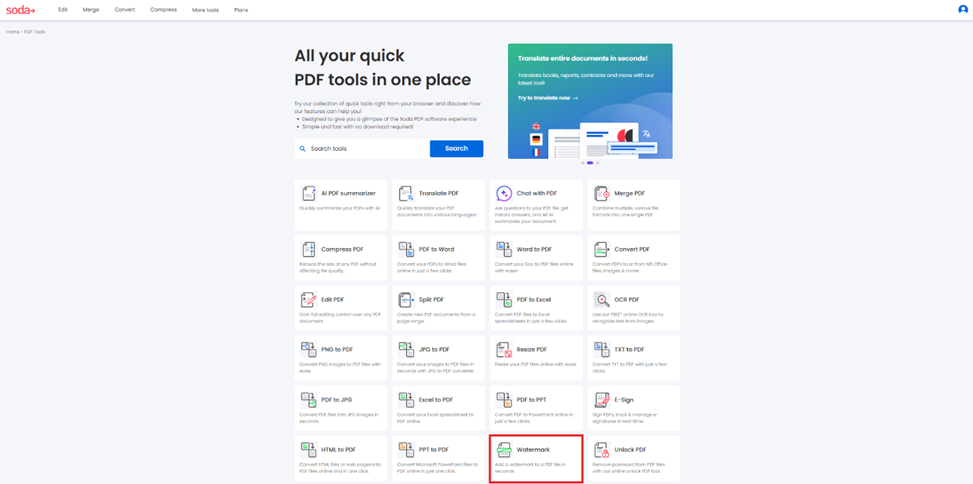
Open Soda PDF’s online tool and select Watermark from the main menu.
Step 2: Choose your file
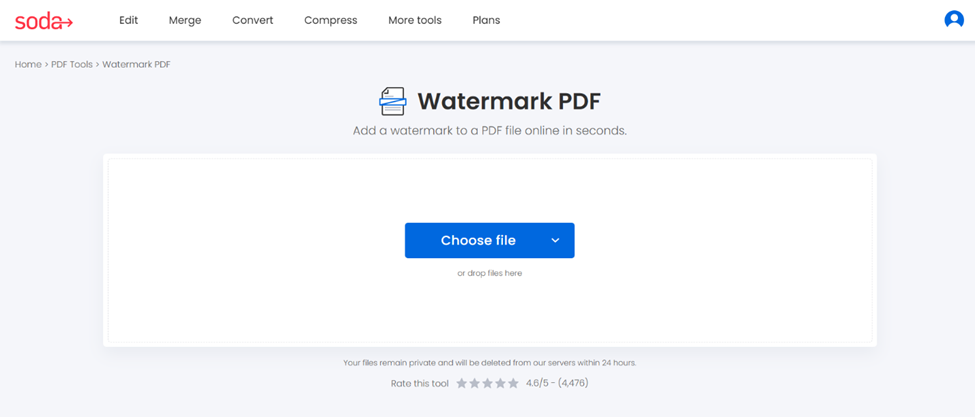
Select the file to work on, then drag and drop it into the box, or upload it from your device, Google Drive or Dropbox.
Step 3: Fine-tune the watermark settings
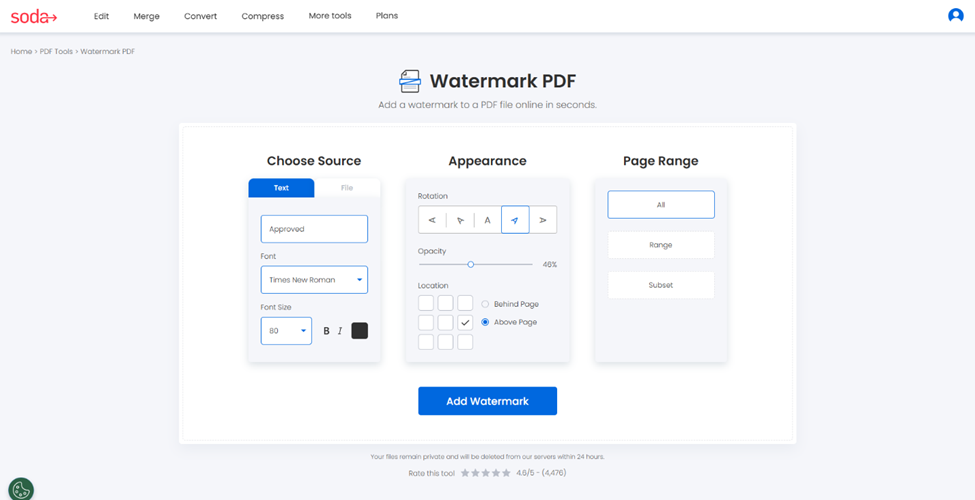
Choose the source: text or file.
- For text-based watermarks, write Approved or another statement, like Preview or Preliminary version, then select the font and its size.
- For image-based watermarks, upload your logo, an image or something else.
Then, choose the appearance (rotation, opacity, location) and the pages you want to apply the watermark.
- Rotation: adjust the angle for diagonal marks
- Opacity: control transparency from 1% (invisible) to 100% (fully opaque)
- Position: choose from 9 placement spots across your page
- Location: place watermarks above or behind existing document content
- Pages to apply: select specific pages or apply to the entire document
Step 4: Apply your watermark
Once the adjustments are made, click on Add Watermark, the digital mark will be instantly added to the selected pages, maintaining the document’s original formatting and quality.
To view your doc, click on Open my document. You will be able to export it in different ways or download your file directly to this device.
Note: It’s also possible to add watermarks by using Soda PDF’s desktop version.
How to remove watermarks from PDF documents
Sometimes you need to remove marks from existing PDFs, whether they’re outdated branding, draft markings, or unwanted elements from received documents. Removing watermarks is just as simple as adding them.
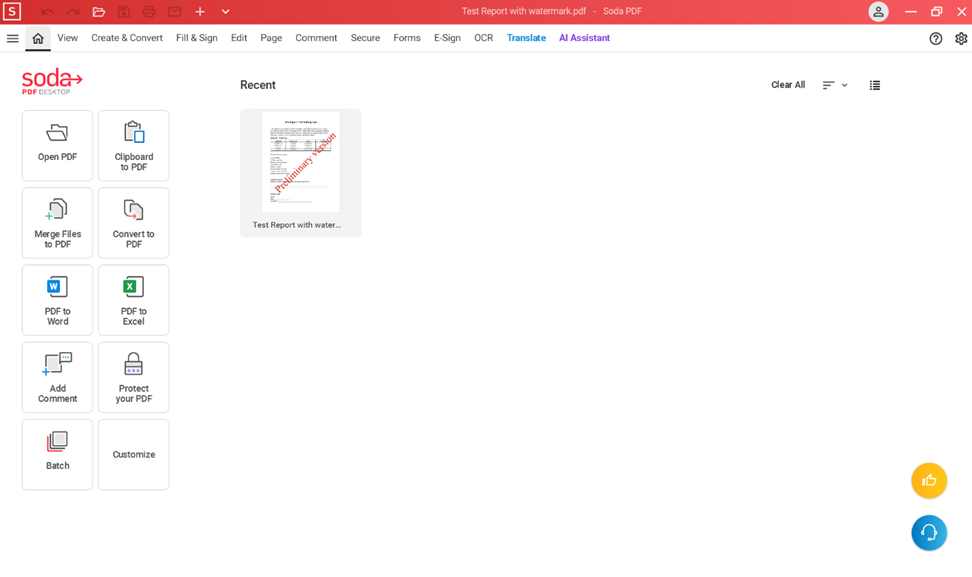
Step 1: Download Soda PDF’s desktop version
First things first, if you don’t already have it on your device, download Soda PDF’s desktop version, it’s free. Choose the PDF to work on, then drag and drop it into the box, or upload it from your device, Google Drive or Dropbox.
Step 2: Access the Edit module
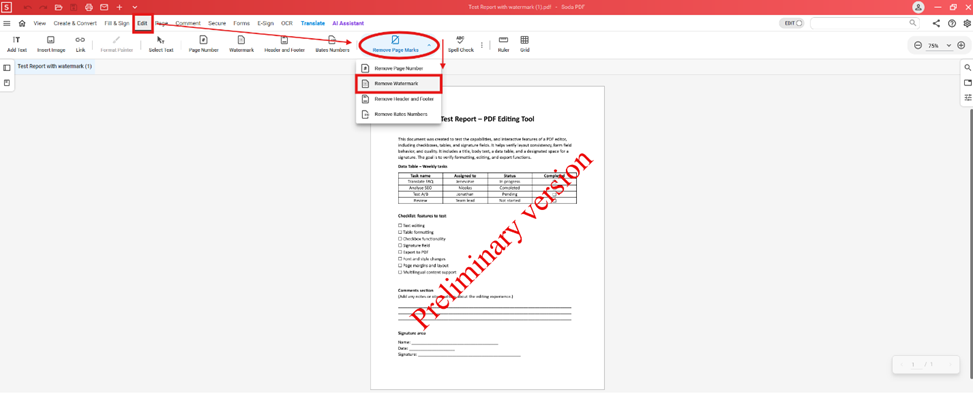
Open your document and the Edit module in Soda PDF. Then, click on Remove Page Marks and select Remove Watermark from the options. Instantly, the mark vanishes.
Step 3: Get your watermark-free file
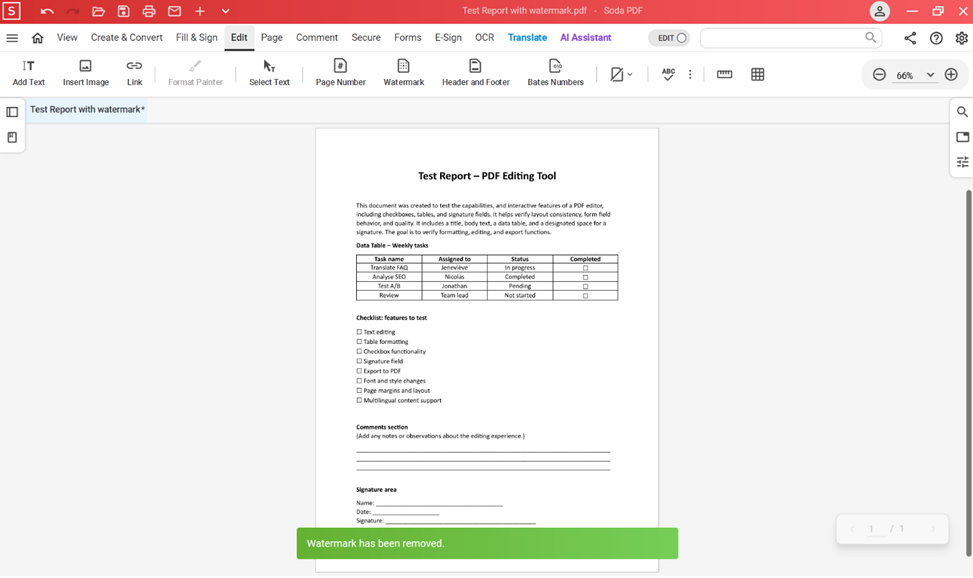
Now that digital marks have been removed, save your work on your device, print it or send it by email. The removal process preserves your document’s original content and formatting while cleanly eliminating watermark elements.
Best practices for watermark management
| Use context | Practical watermark tips |
|---|---|
| Corporate teams 🏢 | Standardization ➡️ Define clear guidelines and use different watermarks for different document types and departments. Think big ➡️ Use batch processing tools to apply watermarks across large volumes of files (desktop version only). Visibility ➡️ Adjust opacity: higher for external documents, more subtle for internal use. |
| Freelancers & independent workers 🎨 | Make it yours ➡️ Create a branded watermark that reflects your style and professionalism. Stage ➡️ Use “Draft” or “Preview” during client review phases. Finalization ➡️ Remove the watermark only once the work is completed and client-approved. |
| Personal use 🏠 | Protection first ➡️ Add watermarks to important personal files (resumés, certificates, creative work) before sharing. Status ➡️ Use simple text marks like “Confidential” or “For review” to indicate document status clearly. Clean copy ➡️ Always keep an original, unmarked version for your records. |
Removing watermarks: legal and ethical considerations
When a document has a watermark, usually it means a legal matter. If you’re not the author, which means you don’t have the editing rights, you’re not allowed to remove them. Before removing watermarks from any documents, always ensure you have the legal right to do so.
Remove watermarks only from:
- Your own documents, where you have editing rights
- Files where you have explicit permission
- Documents where digital mark removal is a part of your authorized workflow
Never remove watermarks from copyrighted materials or documents where they serve as legal protection.
Mastering watermarks
Mastering digital mark management makes your professional document look… professional! Soda PDF empowers you to maintain high standards while protecting your content. Whether you’re adding branded watermarks to business proposals or removing outdated markings from updated files, this tool gives you complete control over your PDF’s professional appearance.
Our intuitive interface makes operations accessible to users of all technical levels. For advanced features, like batch processing, use our desktop version to manage large document volumes.
✨Ready to take control of your document watermarks? Try Soda PDF’s Watermark tool and experience the difference professional document management makes in your workflow.
❓FAQ about watermarks
Yes, but only if you have the editing rights for this document. Some protected or encrypted files may restrict watermark removal. In such cases, you may need to unlock the file or request permission from the owner before proceeding.
Soda PDF’s removal tool is designed to preserve document quality while cleanly eliminating watermark elements. Your text, images, and layout will remain intact, ensuring the document looks professional and consistent after the watermark is removed.
At Soda PDF, we let you use our tools for free* to experience them, to see just how easy our features are to use. There are size and daily usage limitations: file of 3 Mb or less, or 2 files per day. For example, you can use our tools to compress, convert, or merge up to two PDF documents per day for free, with a size limit of 3 Mb. No account required, and your docs keep their original glow. No logos, no watermarks added.
Experiencing our tools for free* allows you to see how you can achieve fast and reliable results with Soda PDF. We must admit, it’s our way of winning you over!
To read all the details, check out our free access policy.
*Size and daily usage limitations: file of 3 Mb or less/2 files per day.
Of course, you can apply different marks to different pages or layers multiple times if needed. You can also add your logo as a watermark. A great way to brand your work as a reflection of your style and professionalism.
Absolutely not! For batch processing watermarks on very large documents, please use our desktop version. Soda PDF handles various file sizes efficiently, though very large documents may take longer to process.
Looking for an alternative to Adobe Acrobat®? With Soda PDF, there is no installation, no subscription required—unless you want unlimited access, with no size or daily limitations.
Experience our full suite of free* tools with daily limitations for your documents:
Convert Word, Excel, PowerPoint (PPT), PNG, SVG, or JPEG to PDF—and vice versa
Compress large documents, even hundreds of pages
Merge or split PDF pages
Edit your files with our built-in editor or fill in a form
Protect and sign PDFs (desktop features only)
Unlock PDFs
Use advanced OCR technology to extract text from scanned pages or image files (JPEG, SVG, PNG…) All of this is entirely online, no app installation needed. Explore our full range of tools in the top menu or down in the footer (yes, that’s what it’s called).
*Size and daily usage limitations: file of 3 Mb or less/2 files per day.
Our PDF software is available as a desktop version for Windows. Check out our options and download it for free.