PDFs come from everywhere—emails, scanners, apps, downloads, and coworkers. Before you know it, you’re juggling several separate files that really should be one clean and organized document.
Whether you’re assembling a client proposal, grouping scanned pages, or preparing a single file for submission, merging PDFs is one of the simplest and most useful skills to master. This guide will help you combine multiple PDFs smoothly and professionally step-by-step.
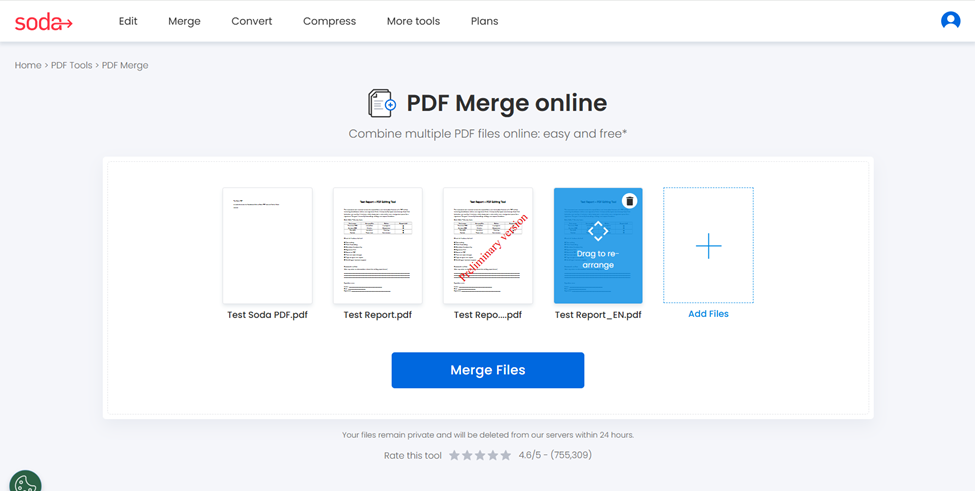
Step 1: Choose and upload your files
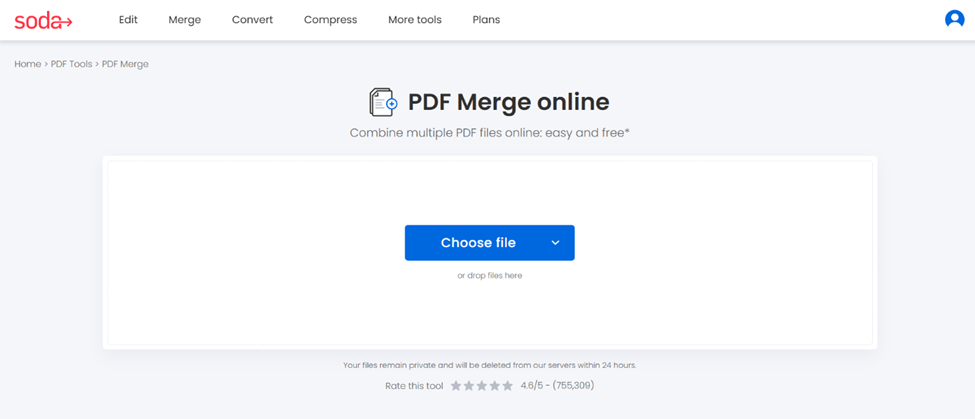
Combining PDFs always starts the same way: by getting your files into the box.
- Open Soda PDF’s merging tool
- Upload your documents
Drag and drop your files, or upload them into the box from your device, Google Drive, or Dropbox. You can upload:
- Scanned PDF’s
- Multiple pages documents
- Reports and brochures
💡 As an assistant, you will find it very easy to merge several parts of a contract or gather various chapters of a report.
Step 2: Arrange file order
While uploading your different documents, you can already rearrange the file order.
- Change the order. Simply drag your file to rearrange the sequence.
- Delete unwanted pages. If you see blank pages or duplicates, remove them before merging.
- Click on Merge Files. Only a few seconds to wait, then click on Open my document.
Note: You can upload as many files as you want—6, 10, 15 documents.
💡 As an entrepreneur, putting an invoice, a quote, and terms together and in the right order before sending to a client is priceless and much more professional.
Step 3: Edit your new document (optional)
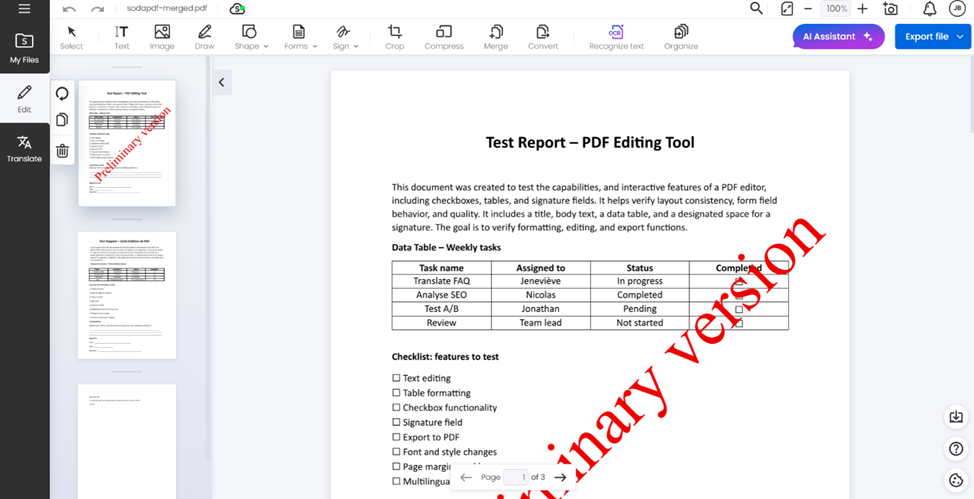
Take the opportunity to refine your final merged document:
- Add text, images, shapes, forms, etc.
- Insert a signature section
- Crop, compress or organize your pages
- Use AI Assistant to get answers, and summaries about the content
- Rotate, duplicate or remove pages
💡 As a professional in your field, you will find out how simple merging files and editing them are with Soda PDF’s online merging tool.
Step 4: Download your merged file
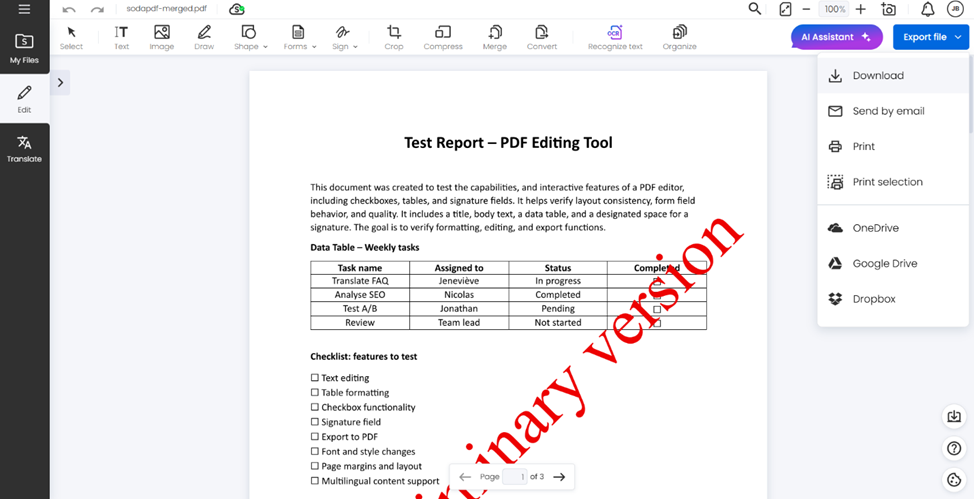
Once your document is complete:
- Download it
- Send it by email
- Print it
- Save it in OneDrive, Google Drive, or Dropbox
Make sure your new document has a descriptive file name to quickly find it in the future.
Ready to merge your PDF?
Whether you’re merging large brochures, and scanned contracts with multi-page reports, our PDF merging tool combines them into a whole new document.
✨ Combine multiple PDF files into one professional document with our PDF merging tool online.
🔍 Would you like to know about our other features? Explore our full range of tools.