Signing PDFs has become an everyday task—for contracts, approvals, invoices, agreements, HR documents, and much more. Instead of printing, signing by hand, and scanning, you can now add a clean, professional digital signature in just a few clicks.
Whether you’re signing a contract, approving a form, or requesting signatures from others, this guide shows you exactly how to sign a PDF quickly and securely.
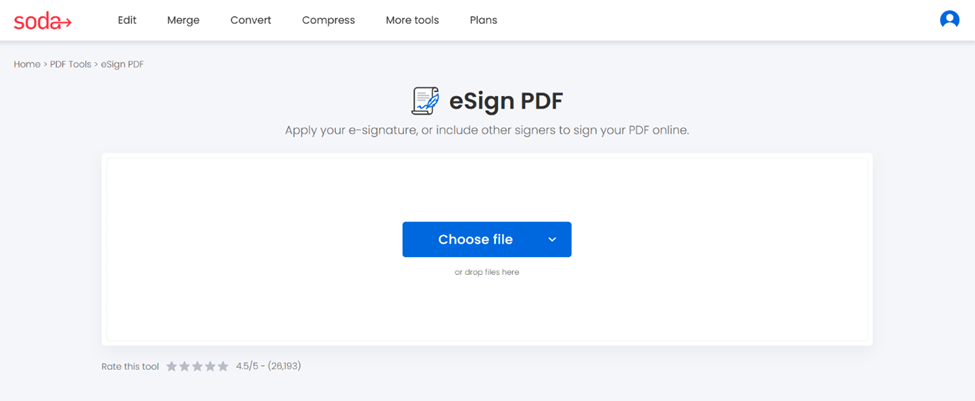
Step 1: Select and upload your document
Start by loading the file you want to sign.
- Open Soda PDF’s sign tool
- Upload your document
Drag and drop your file, or upload it into the box from your device, Google Drive, or Dropbox.
- Contracts
- Forms
- Agreements
- Invoices
- Scanned documents
As an HR professional, uploading digital contracts for approval and signature is part of your daily routine.
Step 2: Choose your signature method
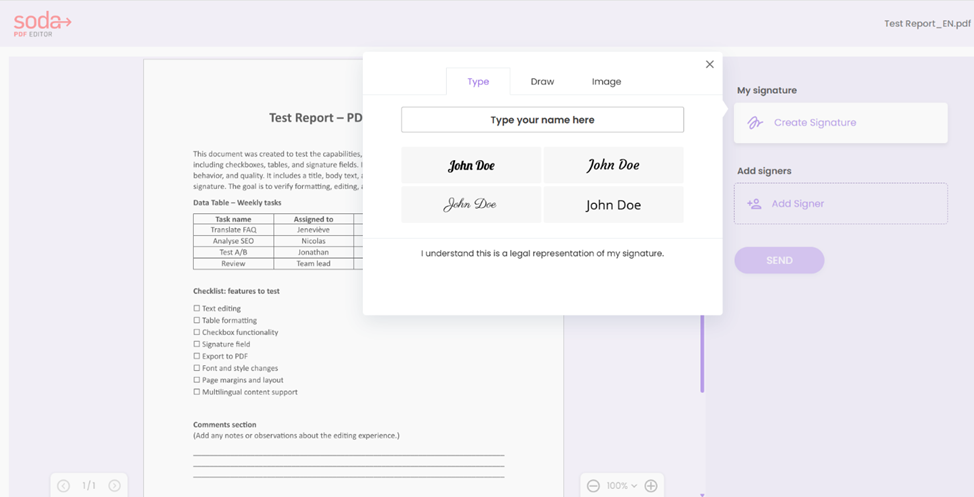
Our signing tool offers three signature methods:
- Draw your signature
You can use your mouse, trackpad, or touchscreen to draw your signature directly on the screen. - Type your signature
Select a handwritten-style font and type your name. - Upload a signature image
You can upload an image or a picture of your signature.
Click anywhere on the page to start.
💡As an entrepreneur, uploading your digital signature ensures consistent branding across all documents.
Step 3: Add your signature and send to signers
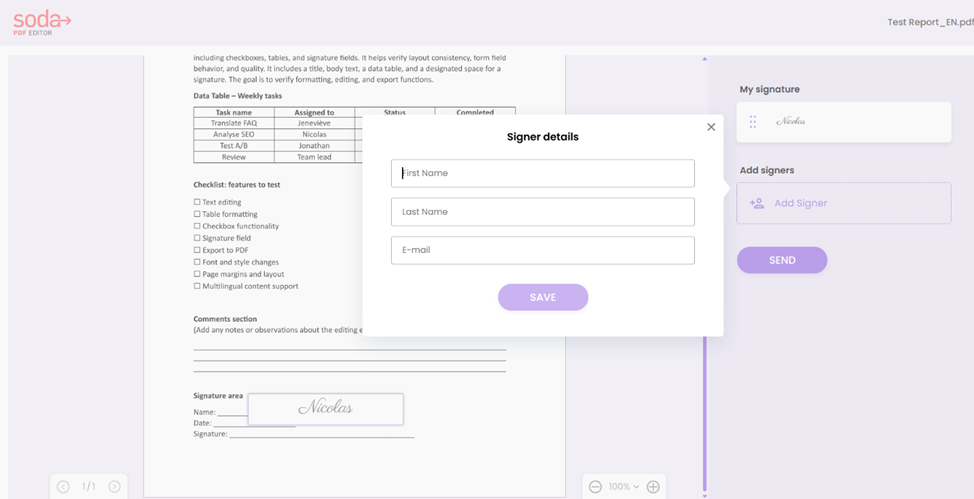
Once you have created your signature, drag and drop it where you wish to sign.
- To add more signers
Simply enter their information—first and last name, and email—in the signer details, then click on Save. - Send the signers the document by email
Click on Send.
💡As a real estate broker, you demonstrate professionalism by placing your signature neatly on a purchase agreement.
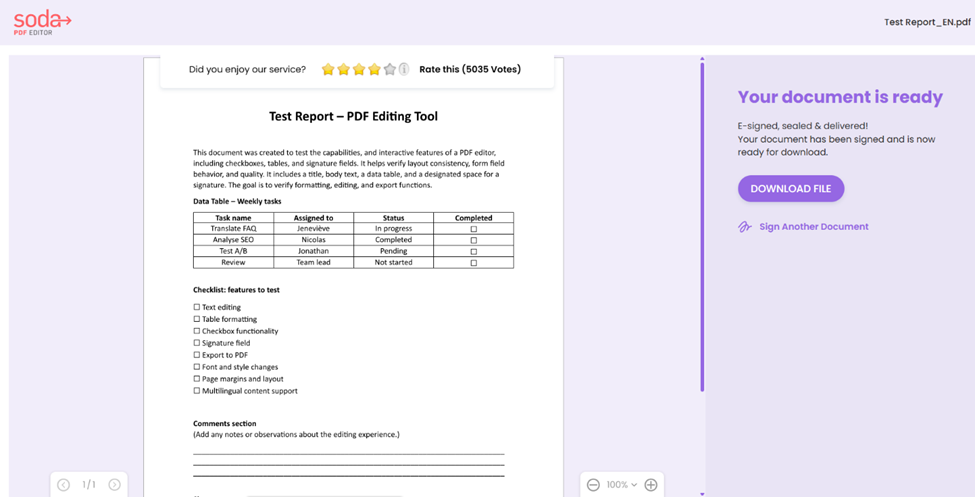
Step 4: Download your e-signed document
Once the signing is complete, you will receive an email with the signed document, which you can download directly from the email or through the Soda PDF signing tool.
Ready to sign your PDF?
With our PDF signing tool, you can add your digital signature in seconds—whether you’re approving contracts, finalizing agreements, signing invoices, or completing HR forms—in a clean, secure, and professional way.
✨Sign PDFs or send them to multiple signers—quickly and securely with our PDF signing tool.
🔍Would you like to know about our other features? Explore our full range of tools.