PDFs often contain more pages than you need—entire reports, multi-page scans, contracts with annexes, or large booklets. Splitting a PDF allows you to extract only the pages you want, reorganize content, or create separate documents for easier sharing.
Whether you’re isolating a single page, creating multiple smaller PDFs, or removing unnecessary sections, this guide shows you exactly how to split a PDF quickly.
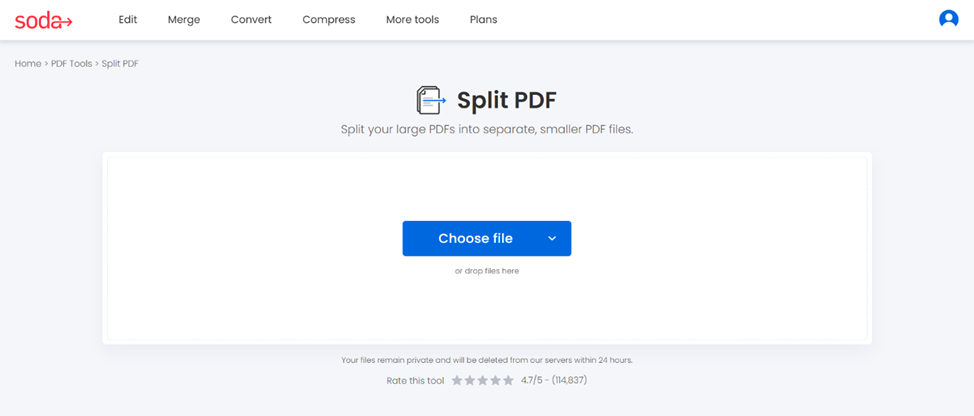
Step 1: Choose the document to split and upload it
Start by loading the PDF document you want to divide.
- Open Soda PDF’s split tool
- Upload your document
Drag and drop your file, or upload it into the box from your device, Google Drive, or Dropbox.
- Large PDFs
- Scanned documents
- Multi-chapter PDFs
- Forms, booklet, reports
💡As an HR professional, you might want to upload a 25-page report to extract only the executive summary.
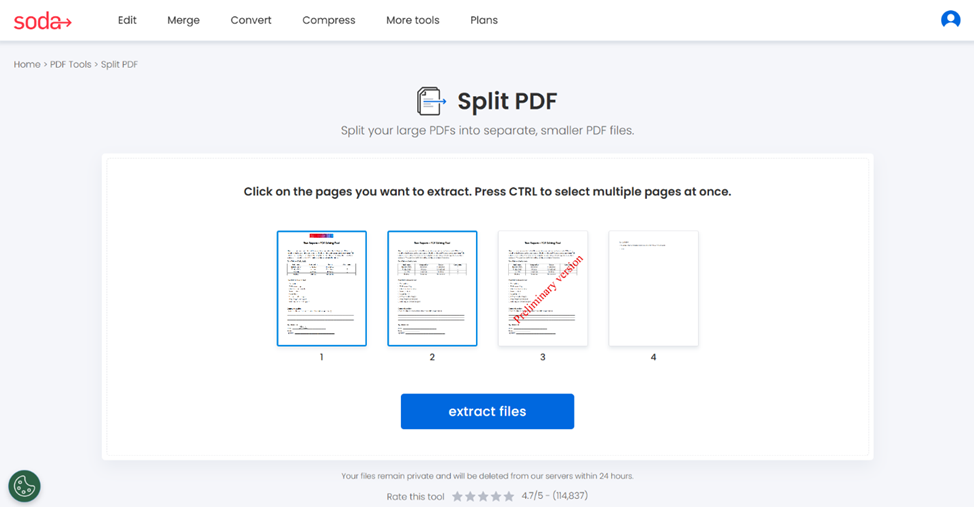
Step 2: Select the pages to extract
Choose the page or pages you want to extract to create a whole new document.
- To select multiple pages at once: press CTRL, then select the pages.
- To view your new document: click on extract files.
💡As an assistant, extracting blank pages from a report or just the signed contract section is an easy task with Soda PDF.
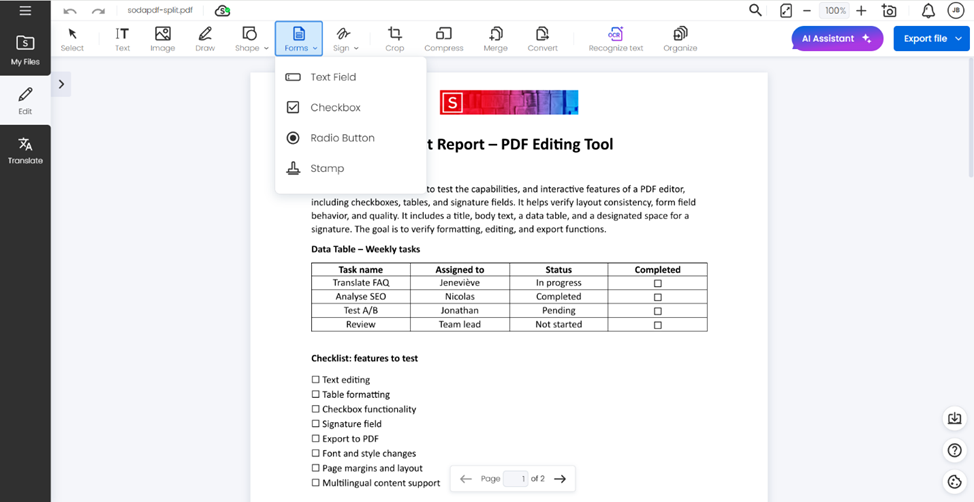
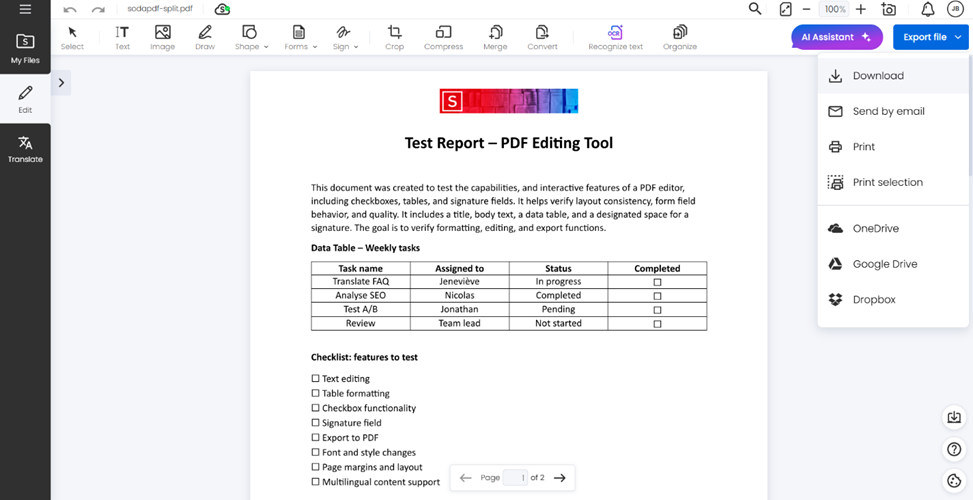
Step 3: Edit your new document (optional)
With this new document, you can modify the final version:
- Add text, images, shapes, forms, etc.
- Insert a signature section
- Crop, compress or organize your pages
- Use AI Assistant to get answers and summaries about the content
- Rotate, duplicate or remove pages
💡As a professional in your field, you will find out how simple splitting files and editing the new one is with Soda PDF’s online extracting tool.
Step 4: Download your split document
Once you have finalized your document, you can:
- Download it
- Send it by email, or print it
- Save it in OneDrive, Google Drive, or Dropbox
Ensure your new document has a descriptive file name to improve file management. Keeping the source file is always good practice for future updates.
💡As a writer, you can extract chapters from your e-book while keeping each one in a separate file.
Ready to split your PDF?
Whether you need to extract specific pages, separate sections, or create multiple smaller PDFs from a large document, our PDF splitting tool makes it quick, clean, and professional.
✨Split PDF files into a smaller document or extract one page with our PDF splitting tool.
🔍Would you like to know about our other features? Explore our full range of tools.