To extract pages from a PDF in Soda PDF Desktop, open your file and choose Page > Extract. Enter a range such as 2–3, then save those pages as a new PDF. Need pages from different parts of the document? Hold Ctrl, select their thumbnails, right-click and choose Extract. You can also use Soda PDF’s online Split PDF tool.
Imagine your client asks for the pricing section of a 40-page proposal document you shared. Now, you could send all 40 pages in the document and tell them where to look. But you can also give them the three or four specific pages they actually need (without copying screenshots or rebuilding the document).
That’s what PDF extraction does: it allows you to make a separate file from the pages you select. We’ll give you a complete rundown of how to extract pages that sit together, how to choose specific pages from different parts of a document, and how to verify that everything looks the way it should before sharing. We’ve also developed and attached a downloadable practice PDF resource to this post so that you can follow along and try it yourself.
Choose extraction when you want a separate copy
Use extraction when you want part of a PDF to be a its own document. For example that final document may be just the signature pages from a contract, a few slides from a presentation, or three recipes from a much more detailed booklet. You get a separate file, and the full document remains available.
Extraction and deletion can often look very similar while you’re working in a PDF editor. They serve distinct purposes and do very different things to the file, though:
Save the selected pages in a new PDF. The complete source stays available.
Take pages out of the document you’re editing. Select this option if the document itself needs to be shorter.
Splitting is of course a broader term: you can divide one PDF into several smaller files, sometimes as many as one file per page. Extraction is about keeping a particular selection. Soda PDF’s Split PDF tool supports individual pages and ranges. [2]
One thing that is sometimes easy to overlook: context. Consider a situation where you have a budget table on page 12, but the assumptions behind the data may be found on page 11. Obviously you’ll want to send both if the reader needs both. A smaller or shorter PDF document isn’t much use when it leaves out the explanation.
Extract a consecutive range
If the pages you need sit together, use a range. Say the budget is on pages 2 and 3 of a five-page proposal. Extracting 2–3 gives you one two-page PDF, not two separate files. [1]
Typing a page range
Make sure to use the pages’ positions in the PDF file, as opposed to the numbers printed on them. In our example, 2–3 would mean the second and third pages of the whole document. The recording below illustrates where to enter that range in Soda PDF.
Here’s what happens in the video:
- Open the PDF file, then go to the Page tab and click Extract.
- Choose Range and then type 2–3.
- Name your new PDF doc and choose where to save it.
- Keep Open result document after extraction checked, then click Extract.
- Review the two-page result. Then return to the original and confirm all five pages are still there.
We made an eight-page practice PDF with a budget, an unnumbered cover, a scanned invoice, a diagram and a fillable / editable form. Its printed page numbers intentionally restart partway through because this is a safe way to practice with a file where the numbers on the pages don’t always tell “the whole story”.
Download the file and open it in a PDF editor such as Soda PDF. Extract PDF positions 2–3. Your result should contain the budget summary and its detailed breakdown—not the receipt.
Ready for a more difficult selection?
Extract 1,3,5-7 to make a five-page file from non-adjacent pages. Then extract page 6 by itself. Can you still type in its contact field?
Name the file for what’s inside—Proposal-budget.pdf is easier to find later than a number or a default filename. If the result doesn’t open automatically, look in the folder you selected.
Only need one page? Select that page alone. For other methods, see our guide to saving one page of a PDF.
Make sure to look out for mismatched page numbers. A cover, for instance, might have no printed number. An introduction may use Roman numerals, or chapter one may start again at page 1 etc… But the PDF document will still have a first, second and third page in its actual file order. Those are the positions to check when extracting. Some PDFs also have custom page labels, which viewers may display differently. [3]
Example: two different ways to count the same pages
The page printed “2” is actually the fourth page of this PDF. Select PDF page 4, shown in blue.
Extract pages that are not adjacent
Need the cover, a summary on page 3 and a chart on page 7? You don’t have to bring along pages 2, 4, 5 and 6. Extract the pages you need, even when they aren’t next to each other.
Picking from the thumbnail grid
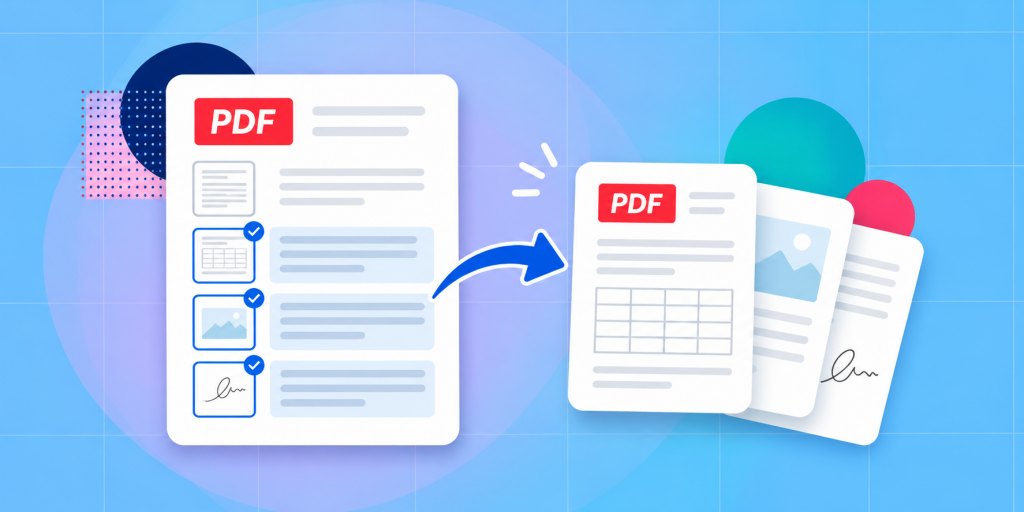
In Soda PDF Desktop, hold Ctrl and click each thumbnail you want to keep. Right-click one of the selected thumbnails, choose Extract, and save the new PDF. Soda PDF documents this shortcut separately from the range method shown in the video. [1]
The browser-based Split PDF tool also supports mixed selections. For example, 1,3,5-7 means five pages: 1, 3, 5, 6 and 7. Select them, click Extract files, then download the result. Check the order if you’ve mixed individual pages and a range. [2]
For a complicated selection, try the page selector below first. It helps you write down the right positions before you open your own PDF.
See exactly which pages you’ll keep
Click any sample page to select or deselect it. Have a different PDF in mind? Enter its page count and the numbers you want, then copy the selection.
Original page positions 1, 3 and 6, kept in source order.
This is a page-selection planner, not a PDF extractor. It never opens or uploads your file. In Soda PDF Desktop, select scattered pages using Ctrl-click on thumbnails; don’t type a comma-separated selection into the range field.
Take a second look at anything the selected pages refer to. A chart without its legend can be meaningless. A contract clause may depend on a definition ten pages earlier. Include the extra page when it saves the reader from having to ask for the original.
Keep the original PDF intact
Leave the source file where it is and give the extract a different name. Proposal-budget.pdf is easy to recognize; two open tabs named “Document” are not.
That way, you can send a few pages without losing your complete proposal. In the illustration below, page 2 becomes a new PDF. All three pages remain in the source file.
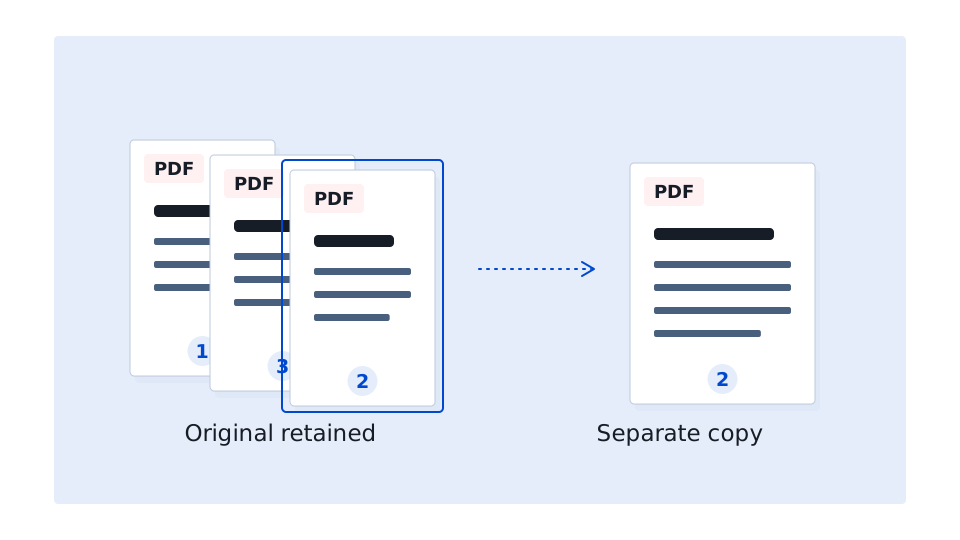
Keep an untouched backup if the source is important for legal, financial or record-keeping purposes. And don’t delete the pages afterward unless you actually want to change the original.
A smaller PDF isn’t automatically a private one. Check the pages you’re sending for names, addresses, comments and anything else the recipient shouldn’t see. To permanently remove sensitive information, use proper PDF redaction. Extracting pages is not a substitute.
For confidential files, use the workflow your organization allows. Soda PDF’s online Split PDF page says uploaded files are deleted from its servers within 24 hours. If your documents must stay on your computer, use an approved local option such as Soda PDF Desktop. [2]
Check the extracted pages
Open the extracted PDF before you send it. A page can look exactly right while a link no longer works, a form behaves differently, or an important explanation sits on a page you left out. Check these four things:
Look at the first and last pages, then scan the middle. This matters most with non-adjacent selections.
Zoom into small print, tables, chart labels and scan edges. Check for anything cut off or hard to read.
Click important links and bookmarks. If there’s a form, check that its fields still work.
If a page says “see Appendix B,” make sure the reader has that appendix—or knows where to find it.
We tested what actually happens when pages are extracted
We wanted to know what changes when you extract pages. How much smaller does the file get? What happens to links and editable fields? So we built the eight-page practice PDF above and ran a set of controlled tests.
What we learned: Fewer pages doesn’t always mean a much smaller file. A single page with a large embedded image can outweigh several pages of text. We made page 8 unusually image-heavy to show that difference clearly.
We compared 13 extracted-page renderings across eight selections. At the resolution we tested, every one matched the source pixel-for-pixel.
In our test, the link to an excluded page disappeared. Links between included pages—and an external website link—remained.
We extracted the form page, typed into its text field, saved the file and reopened it. Our entry was still there.
The receipt contained an image of text, not selectable text. Extraction didn’t change that. It would still need OCR to make the words searchable.
The practical takeaway: don’t stop at the page count. If the recipient needs links or forms, try them in the new file. If they need to search a scan, test that too.
See the test method and repeat it yourself
We made eight different selections from the source PDF. For each result, we checked its page count, file size, selectable text, annotations and links. We rendered the pages at 1.3× resolution and compared those images with the matching source pages. We also changed a field in the extracted form, saved it and reopened it. You can download the source, answer key and measurements below, then repeat the selections in Soda PDF on your own computer.
Will extraction reduce quality? The short answer is no, not typically. When you extract pages from a PDF, you are essentially just copying the existing pages into a new file. This means you’re not actually turning them into screenshots or compressing them into images. The text, images and layout should look pretty much the same as they did in the original. It still may be worth opening the new document to check that everything looks as it should.
What about digital signatures? Keep the original signed PDF for verification. An extract is a new document and you definitely shouldn’t assume the original certificate signature will still validate. Soda PDF’s guidance explains why many different types of changes to a PDF can actually invalidate digital signatures. [4]
Using a password-protected PDF? There is a chance you’ll find that you need to unlock the document with the proper password and permission before extracting pages. Soda PDF’s online Split PDF tool requires protected files to be unlocked. [2]
If you chose pages 2–3, open the resulting file and check that it contains exactly those two pages. Missing something? Just return to the original document and extract again. You’ll find that’s generally easier than patching a file made from the wrong selection.
Sources
- How to Extract a Page from a PDF Document — Soda PDF Support (Desktop range and Ctrl-selection methods).
- Split PDF online — Soda PDF (browser extraction, selections, privacy and file restrictions).
- PDF-UX: Page Labels — PDF Association (file positions versus displayed page labels).
- How to merge digitally signed PDF files — Soda PDF Support (limits of preserving digital signatures when modifying PDFs).