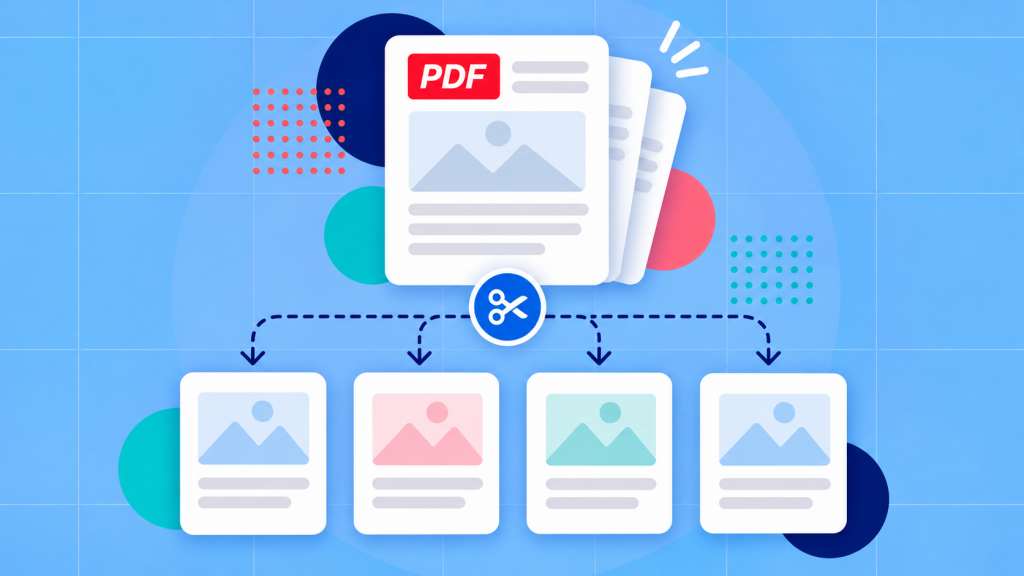
To unmerge a PDF first you need to locate where each original document starts and ends, then save those page ranges as separate PDF files. You can do this with Soda PDF’s Split PDF tool. If you still have the original files, using them is even easier.
Maybe you combined an invoice, an estimate and a delivery note into one PDF, but now someone just wants the invoice. Fortunately you don’t need to rebuild the whole packet, you can just “pull out” the right pages.
There is one catch, however: a merged PDF doesn’t necessarily remember which pages came from which file. That’s why the most important step is determining the boundaries. We’ll show you what to look for, how to extract each document with Soda PDF, and how to check that nothing got left behind.
Plan the documents you need to separate
Before you start, look for the original PDFs in your email, Downloads folder or shared drive. If you find them, you’re done: you can use those files directly, with their original names and contents.
If the merged PDF is all you have, open it and make a quick list of the documents you want back. For each one, you should note its name and page range. For instance a nine-page packet might contain an estimate on pages 1–4, an invoice on pages 5–7 and a delivery note on pages 8–9.
Don’t worry about complex software or OCR at this stage. Right now your goal is just to identify which pages belong together. The planner below can keep track of the ranges as you work.
Try the nine-page example, or enter the number of pages in your own PDF. Mark the pages where one document ends. We’ll work out the ranges and give you a checklist to copy.
Example: nine pages, with separate documents ending after pages 4 and 7.
This is a planning tool, not a PDF splitter. It doesn’t open, change, upload or inspect your file. Use your plan in Soda PDF to create the actual PDFs.
Important if the files were digitally signed: splitting a merged PDF will not bring back the original “certificate-signed” documents. Merging digitally signed PDFs can’t preserve the original signatures’ validity. If proof of signing matters, ask for the signed originals instead. [2]
Find each document’s first and last page
Now you should be able to work through the merged PDF from start to finish. Look for a new heading, invoice number, recipient name, cover page or form title. Those are good clues that another document has begun. But check the page just before and just after a possible split: a table, attachment or second side of a form may still belong to the earlier document.
Use the page’s position in the complete PDF, not the number printed on the paper. The invoice might say “Page 1” at the bottom even though it’s page 5 of your combined file. For an extraction, you need the position in that combined file. PDFs can also use custom page labels, which is another reason to double-check your viewer’s page order. [4]
Quick page-number check: If your PDF viewer says you’re viewing page 5 of 9, that’s the fifth page in the file—even if the page itself is labeled “1.” When in doubt, count through the thumbnails from the beginning.
Using the page thumbnails
Thumbnails make it much easier to see the whole packet at a glance. You can use them to spot a new cover, a change in layout or a group of pages that look alike. Then you’ll want to open the possible split points at a readable size to confirm them.
- Find the first page of a document and note its position in the full PDF.
- Look for the next document’s opening page, then check the page immediately before it.
- Make sure you haven’t missed an appendix, reverse side, receipt or continuation page.
- Write down the range—for example, pages 5–7—and repeat for the remaining documents.
Don’t remove blank pages while you’re still figuring out the boundaries. Why? Well, a blank could be a deliberate separator, the back of a two-sided form, or simply a scan that didn’t capture anything. At this stage just decide what it is first so your page positions stay accurate.
Save each document as its own PDF
Once you have your page ranges, the extraction itself is straightforward. Soda PDF gives you two ways to do it: in your browser, or in the Windows desktop app.
Option 1: Use Soda PDF online. Open Split PDF, upload your combined file and select the pages for the first document. Choose Extract files, then download the result. Repeat with your next range. The online tool also offers individual-page splitting, but that’s not what you want if the original documents have multiple pages. [3]
Option 2: Use Soda PDF Desktop for Windows. This is handy if you’re doing several extractions or would rather work locally. Start each extraction from the original combined PDF so the page numbers don’t change between steps. [1]
- Open the combined PDF and select Page > Extract.
- Choose the page range for your first document—for example, 5–7 for the invoice.
- Give the new PDF a useful filename and choose where to save it.
- If you want to inspect it immediately, enable Open result document after extraction. Then select Extract.
- Go back to the combined PDF and repeat for the next page range.
Name each result for what it actually contains: Invoice-2045.pdf is more useful than Extracted-pages-2.pdf. And keep the original merged file until you’ve checked every output.
Which option should you pick? The browser tool is great for a quick one-off. Desktop is a practical choice if the document is large or your workplace requires files to stay on your computer. If you’re splitting for a different purpose—say, making every page a separate PDF—see our guide to splitting a PDF into pages and ranges.
Separate a batch of scanned documents
Do you have one single PDF document that contains dozens of scanned forms, receipts or letters? The process will be essentially the same: find the first and last page of each document, then extract those ranges. You don’t need to run OCR just to split a scanned PDF. If you can see the page boundaries, you can choose the pages.
Batches scanned in one go
Be careful with batches from a document feeder. Not every document has the same number of pages, and a double-sided scan can include backs that look blank. Don’t assume every second or third page starts a new document just because the first few do.
Often a real boundary. Open both pages and confirm the earlier document has finished.
Could be a divider—or the back of the same sheet. Don’t split on it automatically.
OCR can help when you need to search a long scanned packet for names or document numbers, but it isn’t a reliable way to decide every boundary. A faint scan, rotated sheet or cut-off heading can throw off recognized text. Use the visible pages as your final guide.
What if some pages are sideways or hard to read?
Rotate your view to inspect them, zoom in on document numbers and look at the pages on either side. If a scan is missing a corner or too blurry to identify, try to get a cleaner copy before deciding which document it belongs to.
What if some scanned pages are blank?
Keep them in your working page count while planning. If you confirm they’re just separators, you can leave them out of the extracted PDFs. If they’re blank reverse sides that should remain with a form, include them in that form’s range.
Check the recovered groups
Before sharing the separated PDFs, open each one. A correct-looking filename isn’t proof that it contains the right pages. These three checks catch most of the practical mistakes:
Does the correct document begin here, with the expected title or number?
Make sure the ending, signature page or final attachment is included.
Look for duplicates, missing pages and sheets filed with the wrong document.
Then check your counts. If you split a nine-page PDF into files with four, three and two pages, they should add up to nine—as long as you intended to keep every page once. A matching total doesn’t prove the content is correct, but a mismatch gives you something to investigate.
Type the number of pages in each finished PDF, separated by commas. The expected total follows the page count in the planner above.
Example: 4 + 3 + 2 = 9 pages. That matches the nine-page source.
If you spot a mistake, go back to the original combined PDF, fix the affected range and extract that document again. Leave the other verified files alone. Once every document is correct, you can file or share the individual PDFs with confidence.