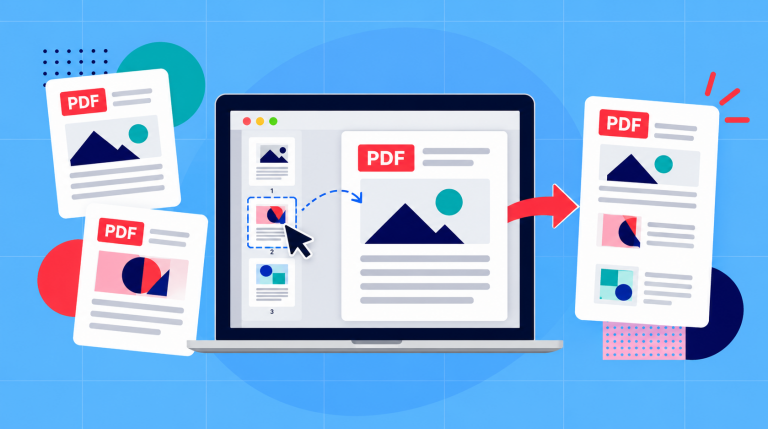
To add pages to a PDF in Soda PDF, just open the document and then select Page > Insert. Here you can choose whether to insert pages from another file or add blank pages. Next, you’ll need to simply select where they should appear: Before or After an existing page, or At the end. Click Insert, review the page order and save your updated PDF
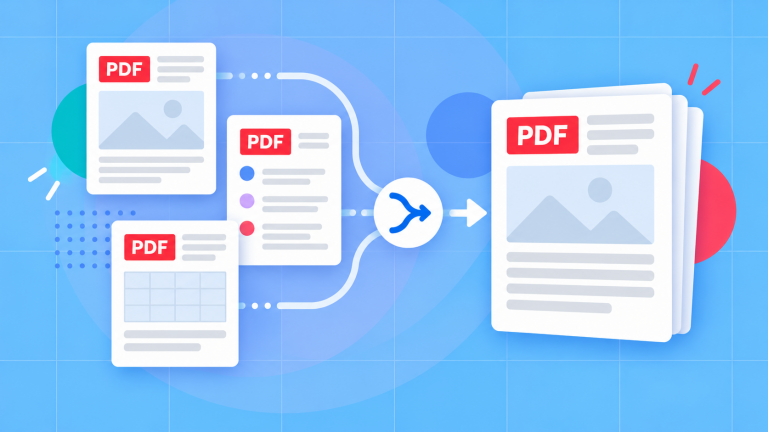
Whether you’re adding a missing page to a report, making room for new content, or inserting a scanned document the important thing is actually getting everything in the right order. Soda PDF allows you to place individual pages exactly where you need them. If you’re combining entire documents instead you may find that the online Merge PDF tool may be a simpler option..
Insert pages from another PDF
Suppose you’ve completed report but realize after that a single page is missing from it. Rather than rebuilding the document, you can instead insert the missing page directly into the existing PDF.
Begin the process by opening the document you want to update in Soda PDF. You’ll also need the PDF that contains the page you want to add. Soda PDF’s Page > Insert feature will let you to choose an external file, select which pages to import and specify exactly where they’ll appear in your document.[2]
In the demonstration below, we’re adding a missing Design review page between the overview and production schedule of a two-page report. The missing page has already been saved as a separate PDF.
- Open the Page overview, click Insert and select Insert from external file.
- Browse to the PDF containing the missing Design review page and select it.
- Set the insertion location to Before page 2.
- Click Insert. The report should now contain three pages in this order: overview, Design review and production schedule.
- Click Save.
One important detail worth paying attention to is the distinction between the source page and the insertion location. The source is the file you’re taking pages from. The insertion location refers to the document you’re updating.
In our illustration, “Before page 2” means the new page will appear immediately before the report’s existing second page. It doesn’t refer to page 2 of the source PDF. We recommend checking the page thumbnails before inserting as that can help avoid confusion, especially if the printed page numbers don’t match their actual positions in the file.
Pulling one page out of another file
So, what happens if the page you need is buried deep inside a much longer PDF?
Don’t worry, you won’t have to insert the entire document. When choosing an external file, Soda PDF will allow you to specify a page range so you can import only the pages you need.[2]
If you prefer, you can also create a separate PDF containing those pages first. Just open the source document in Soda PDF Desktop, then go to Page > Extract and select the page or range you want. Give the extracted file a name, select a destination folder and click Extract.[3]
After you’ve checked the extracted PDF you can then return to your original document and insert it using the steps above.
This approach is especially appealing when you know that you will need to reuse the same page in several documents. Retaining it as a separate file also makes it easier to find and replace later.
Insert a blank page
Sometimes you might find that don’t need to import existing content. For instance, you might simply want an empty page, maybe to separate sections, leave room for notes or add material later etc…
Soda PDF can insert one or more blank pages without creating a separate file first.[2]
- Open Page > Insert and select Blank pages.
- Enter the number of blank pages you want to add and choose their page size from the dropdown menu.
- Select where the pages should appear, then click Insert. [2]
Before confirming, make sure to review the page size against the rest of your document. For example, if you make a mistake and insert an A4 page into a report formatted for US Letter paper that may not be noticeable until you view the pages side by side or print the document.
After you’ve inserted the blank pages, you should make sure to look through the page overview to make sure they’re in the intended position.
If you’ve added too many, you can always delete the extras.
Add a scan or photo as a page
You can also add scanned forms, receipts, photographs or other images to an existing PDF document. The steps to do so will depend on the format of your original file.
If your scanner has already saved the document as a PDF, you can insert it directly using the external-file method described earlier.
For images saved as JPG or PNG files, you’ll need to convert them to PDF first. Soda PDF offers online tools for both formats:
JPG to PDF
PNG to PDF
Select the appropriate tool, upload your content and then you just need to download the converted PDF. [5] [6]
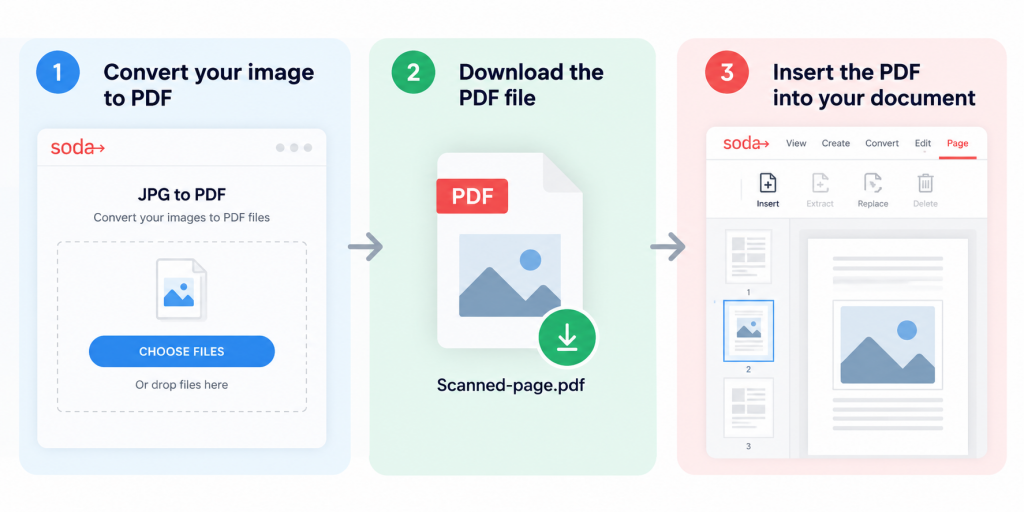
You can then insert that file into your document using Soda PDF Desktop.
At this stage we recommend you take a moment to inspect the converted page before adding it. Is the image upright and well positioned? Is the text large enough to read? Are the edges visible?
These nuances matter when combining scanned pages with an otherwise clean, digitally created PDF document. A blurry photograph won’t become more clear just because you were able to save it as a PDF. If important text is challenging to read, it’s better to rescan or photograph the original.
Also, its worth noting that converting an image to PDF doesn’t automatically turn the words in that image into searchable or editable text. That task would require optical character recognition (OCR), which is available separately in Soda PDF.[5] [6]
Choose the exact insertion point
Understanding which page to add is only half the process and you’ll also need to decide precisely where it belongs.
It’s usually easiest to think about the surrounding content first. Should the new page appear between two sections of a report? After the introduction? Before the appendix?
Once you’ve identified that location, find the corresponding page in Soda PDF’s page overview and use its position to set the insertion point.
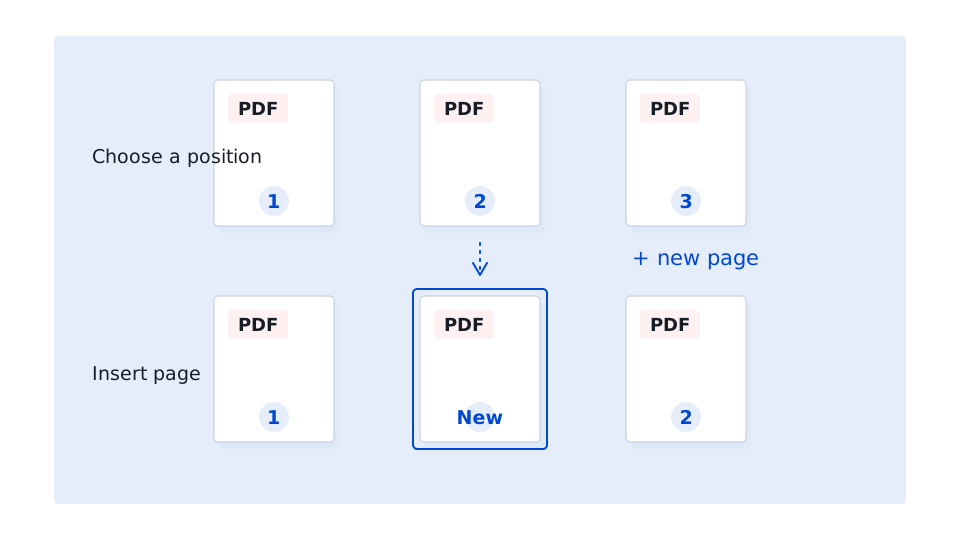
Inserting at the front, the back or the middle
Soda PDF will give you three placement options: Before a selected page, After a selected page or At the end of the document [2]
For example, if you’re adding a new cover page you’ll need to choose “Before page 1”. If you’re attaching supporting information to the end of a report, select “At the end”.
For a page that belongs in the middle, locate the pages on either side of the intended position. In our earlier example, selecting Before page 2 places the Design review between the overview and production schedule.
Also important: after inserting a new page, make sure check the pages immediately before and after the addition. If you’ve inserted several pages, review their order too. Having the correct total number of pages doesn’t necessarily mean they’re arranged correctly.
There’s also an important difference between inserting pages and merging entire PDFs:
If you have two completed documents that simply need to become one file, Soda PDF’s online Merge PDF tool lets you upload both PDFs, arrange them and download the combined result.[1] This is a straightforward and easy enough job. But when you need to place or add a specific page inside an existing document that has multiple pages already, Soda PDF Desktop’s insertion controls give you more precise control over its position.
Check numbering after inserting pages
Adding pages will change their positions in the document but it won’t always change the page numbers printed on them.
To illustrate: imagine you have a five-page report with visible numbers from 1 to 5. If you add a cover page at the start, the original page 1 will become the second page in the PDF viewer. However, the number printed on that page may still say “1”.
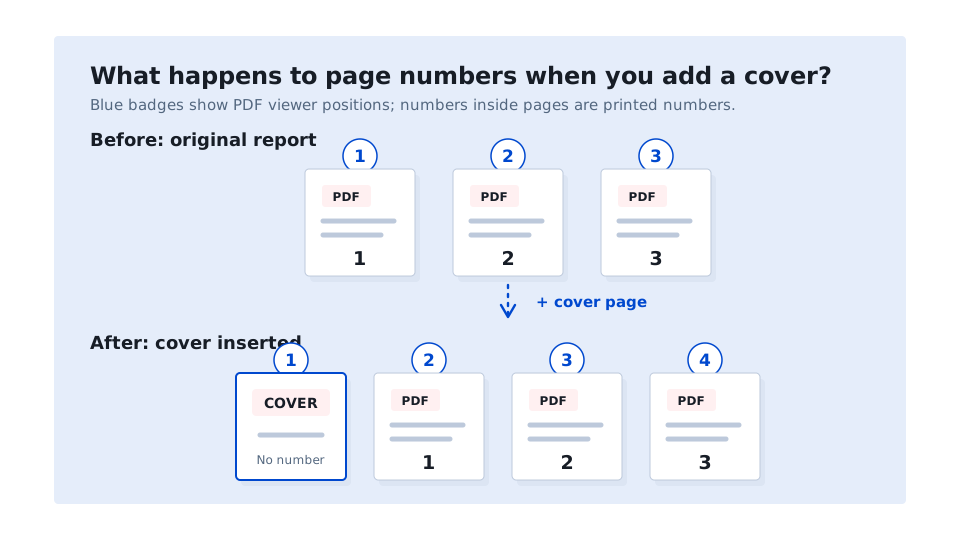
Of course, this isn’t always an issue as some documents intentionally use different numbering for their cover pages, introductions and main content. What’s important, however, is that the numbering makes sense to someone reading the finished file.
Soda PDF’s software can add existing page marks to newly inserted blank pages or pages imported from another file. If your document already has page marks, you’ll be prompted to adjust the numbering automatically or insert the pages without changing it.
Choose the option that suits your document, then check the result.
If you find that you need to add a new set of visible page numbers, go to Edit > Page Number in Soda PDF Desktop. You’ll be a ble to select the number position, starting value, format and which pages should receive numbering. Click Insert to apply your settings.[4]
Adding a cover moves the existing first page to the second position, but a visible number that belongs to its original content may still read 1.
Be sure to check whether the document already contains visible numbers before adding another set. Otherwise, you could end up with two different numbers on the same page.
One important exception involves digitally signed PDFs. Adding or removing pages after a document has been digitally signed can invalidate its existing certificate-based signature. If you’re working with a signed document, use an unsigned copy to make your changes and arrange all the pages before signing the finished PDF.