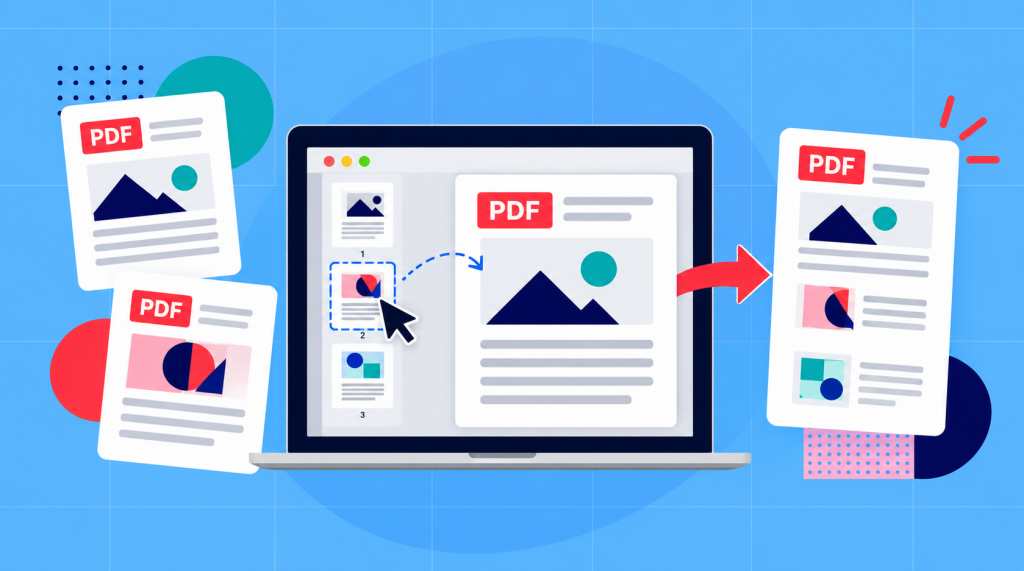
To merge PDF files on a Mac, first open the files in Preview and select View > Thumbnails. From there you can drag pages from one PDF into the sidebar of another, arrange them in the order you want, and save the combined document. You can also use Finder’s Quick Actions > Create PDF tool to combine entire files. You can also make use Soda PDF’s online merge tool directly in your browser.
If you find yourself combining multiple scanned documents, putting together a report and its appendix, or organizing several PDFs into one file, macOS gives you a few different methods to get the job done.
Preview can be a great option when you need to combine specific pages or work entirely on your Mac. Finder will typically provide a quicker approach for merging complete files. If you’d rather use an fast and seamless online tool, Soda PDF’s Merge PDF tool lets you upload, arrange, and combine documents in your browser without having to download or install any application on your device.
The right approach will depend on what you’re combining and how much control you need over the finished document.
Combine PDF pages in Preview
Preview is basically Apple’s built-in PDF viewer and it can actually do more than just open documents. You can also use it to reorganize, move, or combine pages from different PDF documents.
Before you start, make sure you open the PDFs you want to merge and choose File > Duplicate to create copies. Preview can automatically save changes as you work, so using duplicates can help protect your original files.[1]
Next, determine which PDF document will serve as your “main” document. For intance, if you’re adding an appendix to a six-page report, start with the report and insert the appendix pages after it.
Dragging pages into the sidebar
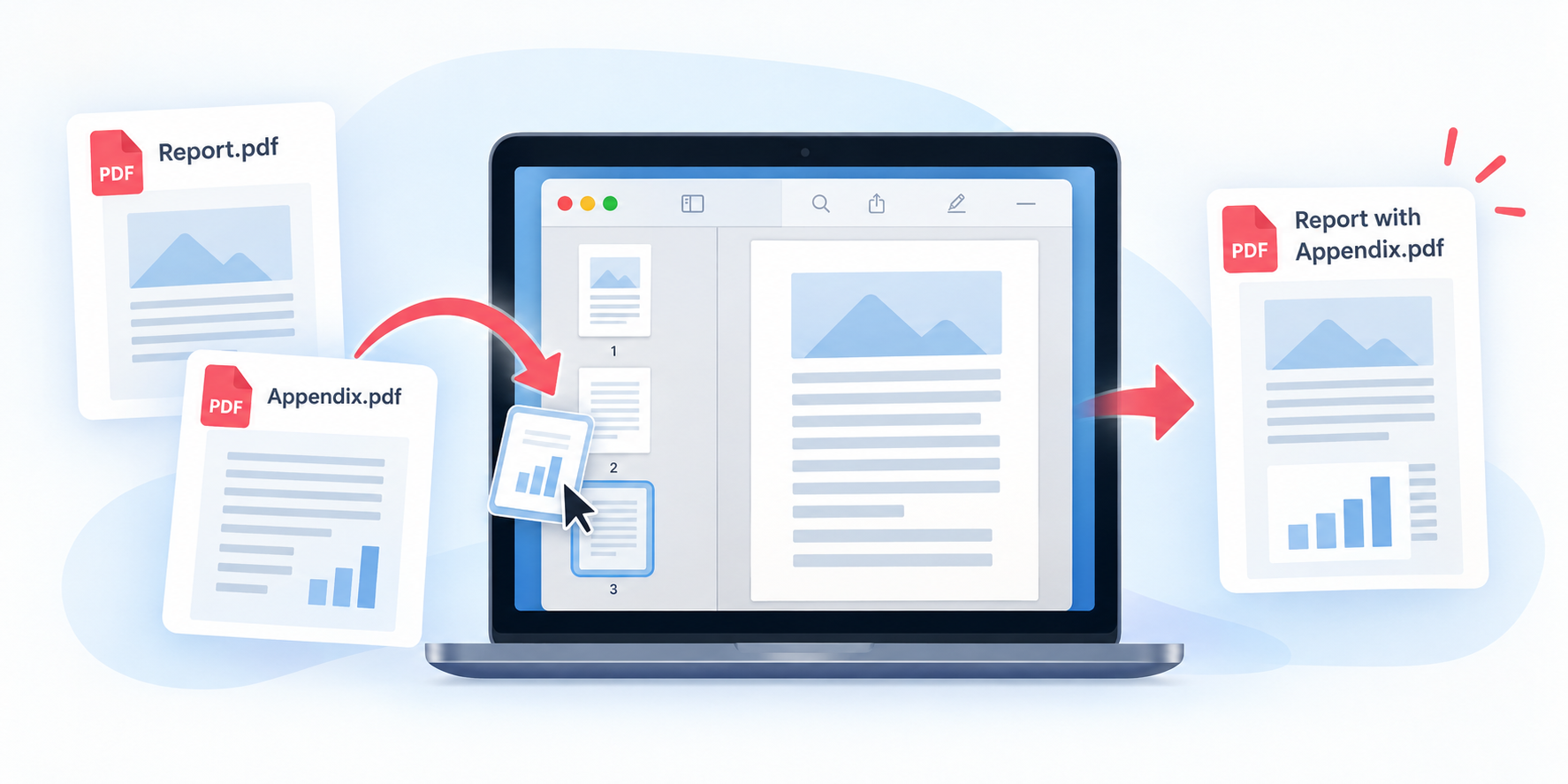
- Open both PDF files in Preview.
- In each window, select View > Thumbnails to display the pages in the sidebar.
- In the source PDF, select the pages you want to add. Hold Command while clicking to select multiple individual pages.
- Drag the selected thumbnails into the sidebar of your main PDF. Place them where you want the new pages to appear.
If necessary, drag thumbnails up or down within the sidebar to adjust their order.[1] - Choose File > Save to save the combined PDF. [2]
Yup, it’s that simple.
Now, if you decide that you want to add an entire document instead of selecting a few individual pages, you can always drag the PDF file directly from Finder into Preview’s thumbnail sidebar [1]
Once you’ve inserted the pages, we recommend that you take some time to scroll through the combined filed to make sure everything looks correct and properly positioned. You should pay particular attention to where one document ends and the next begins.
If needed, you can also save the finished PDF under a new filename. Just hold “Option” and open the File menu to access Save As, then choose a name and location for your file.[2]
Troubleshoot a Preview merge
You’ll probably find that most PDF merges in Preview are pretty straightforward, but sometimes you’ll run into an issue where pages don’t appear where you expect them to, or the finished document doesn’t look quite right.
If pages appear in the wrong order you can likely fix that by opening the thumbnail sidebar and dragging them into the correct positions. You won’t need to repeat the entire merge just to rearrange a few pages. In fact, adding the same pages again could end up leave you with duplicates.
If only a single page was inserted when you expected several, what may have happened is you may have selected a single thumbnail instead of the complete document. You just need to return to the source file, select the remaining pages, and drag them into your main file.
If you can’t see the pages in the sidebar at all, make sure to select View > Thumbnails to make them visible.
Large files and stalled saves
It’s worth noting that combining / merging large PDFs, especially documents that might contain high-resolution scans or images, can take a lot more time than merging smaller files.
If Preview seems slow or stops responding while saving, you might need to give it time to finish processing. It’s best to avoid repeatedly clicking Save etc.. before checking whether the merge task has completed.
If the problem continues, you can always try opening each PDF document separately to investigate whether one of the source files is causing the issue.
For example, a PDF that has password-protection, is damaged, or is missing pages can be the source of the unresponsiveness. If you can’t open the document properly on its own, combining it with another file is won’t fix the underlying problem.
If you’d like to learn about more ways to combine documents – including files with different formats – see our guide on how to merge PDF files.
Combine selected files in Finder
If you’re looking to merge several complete PDFs without selecting or rearranging individual pages, Finder can provide another super convenient option.
Its built-in Create PDF Quick Action can combine multiple selected files into a single PDF without opening each one in Preview.
Here’s how to do it:
- First, open Finder and locate the PDF files you want to combine.
- Select the first file and then hold Command and click the remaining files in the order you want them to appear.[3]
- Control-click the selected files and then choose Quick Actions > Create PDF.
- Finder should create a new PDF document containing the selected documents. Open it to review the result. [4]
The order in which you actually select the files will define their order in the final combined PDF. For instance, let’s say you’re combining a report with two supporting documents – you’ll want to select the report first, followed by the supporting documents in the order they should appear.
If the final sequence isn’t correct you can always begin the process again with a different selection order. You can also open the combined file in Preview and rearrange its pages form there.
You can also access the Create PDF option through Finder’s Preview pane. If the pane isn’t visible, select View > Show Preview. When you’ve selected the files, look for the Create PDF button at the bottom of the pane.[4]
Most people find Finder especially useful when combining a handful of complete documents. If, on the other hand, you need to insert certain pages, remove others, or make more detailed changes to the order, Preview is the method that gives you greater control.
Use a browser merge tool when appropriate
You might be happy to know that you don’t have to solely rely on Preview or Finder to combine PDFs on a Mac. Online PDF tools offer another solution if you prefer a simple upload-and-download process.
Soda PDF’s online Merge PDF tool works directly in your browser, so Mac users can combine files without downloading or installing desktop software.
To merge your PDFs online:
- Go to Soda PDF’s Merge PDF page.
- Click Choose file or drag and drop the PDFs you want to merge.
- Arrange your uploaded documents in the order they should appear.
- Start the merge and download the combined PDF when it’s ready.[5]
- Open the downloaded document on your Mac to make sure everything looks correct.
This workflow is provides a more straightforward interface without switching between multiple Preview windows. Importantly, it should be noted that because Soda PDF’s online tool runs in your browser, it can be used on a Mac regardless of whether you normally use Safari, Chrome, or another supported browser.
Check the order in the saved PDF
Whichever method you prefer to use, it’s always worth reviewing the “finished” PDF before sharing it.
You can begin by opening the saved document from its final location on your Mac. It seems obvious but you want to confirm that you’re reviewing the actual saved file rather than an unsaved version that might still be open in Preview.
Look at the first and last pages to make sure the document begins and ends where you wanted it to. Then check the places where separate PDFs were joined together.
For example, if you’ve merge an appendix, several scanned documents, and a report you’ll want to make sure the report ends before the appendix appears in the doc and that all supporting scans appear afterward etc…
You can’t always depend solely on page numbers to determine whether the order is correct as some documents have their own numbering systems which means an appendix or attachment might start again at page one.
It’s also worth checking for duplicates, missing pages, and pages that were inserted in the incorrec position.
Finally, give the combined file a clear, descriptive name so you can distinguish it from the original PDFs. Keep the source documents separately in case you need to make changes later.
Once you’ve confirmed that the file opens correctly and every section is where it belongs, your merged PDF is ready to share.