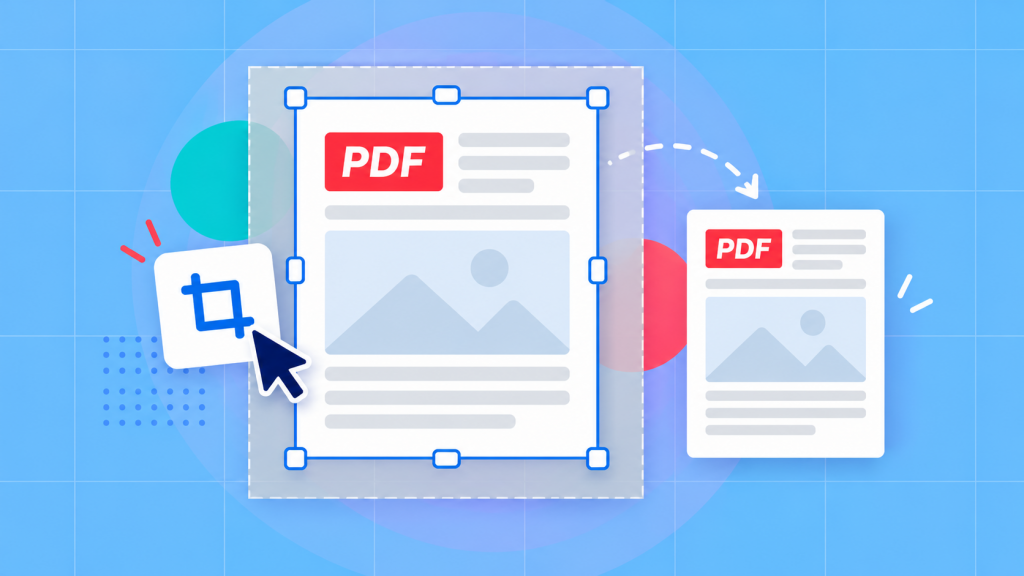
If you need to to crop a PDF document you can use a page-cropping tool to select the area you want to preserve, apply the cropping, and then just save a copy. Before completing the crop, check that nothing important has been cut off (like including headings, page numbers, or notes near the margins). Keep in mind that cropping hides content rather than permanently removing it. If you need to remove sensitive information, use a redaction tool instead.
Have you ever opened a scanned PDF file only to find the actual document surrounded by a huge white border?
It’s a frequent issue, and it can make an otherwise perfectly good PDF awkward to read or print. Fortunately, you don’t have to completely rebuild the file to fix it.
Cropping lets you trim away unwanted areas so you can narrow focus on the content in the file that matters. You can do this using a PDF editor like Soda PDF. If you need to change the document’s paper size or margins instead, a resize PDF tool may be a better fit.
Not sure which approach you need? This article will explain the difference, show you how to crop individual or multiple PDF pages, and cover what to check before saving or printing your finished document.
Choose between cropping and resizing
Cropping and resizing might come across like two different ways of doing the same thing, but there’s an important distinction.
Cropping will change how much of the original page is visible. Consider a scenario where you’ve scanned a letter and ended up with two inches of empty space around the text. Cropping will let you bring the page boundaries closer to the actual document, removing that unnecessary and confusion border from view.
Resizing will change the page’s dimensions. You might need to alter a document from A4 to letter size, for example, or change its margins to fit a particular printing requirement.
For a document with excessive empty space around the edges, cropping is usually the easiest and most direct solution. If you’re trying to make the document fit a specific paper size, resizing will make more sense.
One other thing to watch for: many PDF editors also let you crop individual images within a document. That can be useful if you’re adjusting say, a photograph or illustration, but it isn’t the same as cropping the PDF page itself. Make sure you’re using a page-cropping feature if your goal is to change the visible boundaries of the entire page.
What cropping actually hides
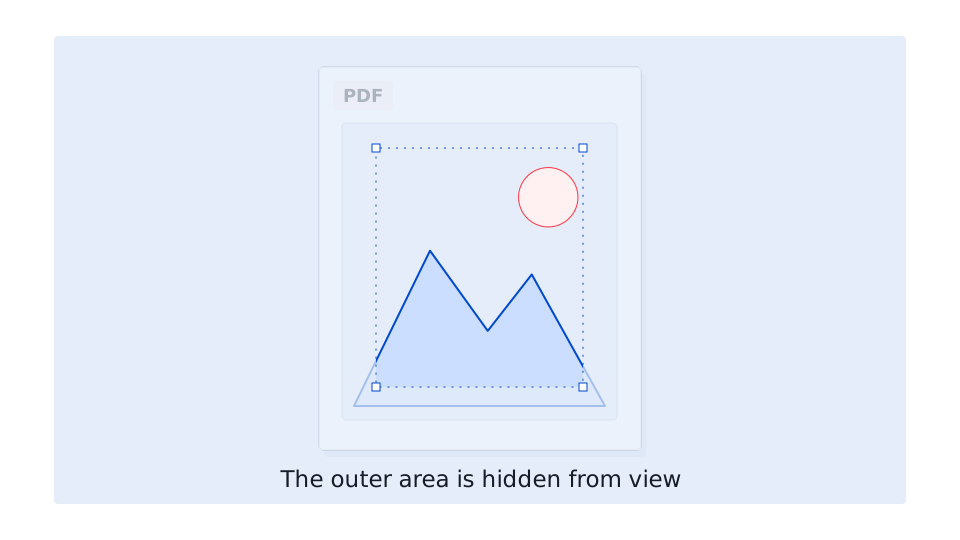
Here’s something that’s easy to overlook: when you crop a PDF document it doesn’t automatically delete the content outside the new boundary.
In fact in most cases the data / content will simply be hidden from view. Someone with the right editing tools may still be able to recover it.
That’s fine if you’re trimming white borders or cleaning up a scanned document but if you’re actaully attempting to conceal an address, an account number, or something confidential cropping isn’t the right approach. You’ll want to use a proper redaction tool to permanently and safely remove sensitive information instead.
Cropping also isn’t a reliable way to reduce a PDF’s file size. If your document is too large to email or upload, consider compressing the PDF instead.
Before making any changes, we recommend that you save a separate copy of the original. This way, if you crop too much or discover that you’ve hidden something important, you can go back and start again.
Crop one PDF page
If you only need to crop a single page, the process is straightforward. Soda PDF includes a page-cropping feature that lets you select the part of your document you want to keep and adjust the boundaries before applying the change.
- Open your PDF in Soda PDF Desktop and navigate to the page you want to crop.
- Here’s how to get started:
- Open the Page tab in Soda PDF.
- Select Crop, then choose Set.
- Drag your cursor across the page to select the area you want to keep.
- Release the mouse button to open the Crop Document window.
- Review the selected area in the preview and adjust the crop settings as needed before applying the change.
The preview will assist you in seeing precisely which part of the page will remain visible. You can tweak and fine-tune the boundaries if your initial selection isn’t quite where you needed it to be.
There’s no need to crop right up against the text. A small amount of white space around the edges of the content actually makes most documents easier to read, particularly if you plan to print them. Pay close attention to things like footers, page numbers, and handwritten notes that might sit close to the margins.
If you find that you accidentally cropped too much, Soda PDF also provides a way to reverse the change. Under the Page tab, select Crop, then Undo, and choose Pages to Undo Crop to restore the affected pages.
Once you’re satisfied with the result, you can save your edited PDF under a new filename. Open it again and check all four edges to make sure nothing important has disappeared.
For more details on the available controls, see Soda PDF’s guide on how to crop PDF pages.
Apply a crop across multiple pages
What if you are in possession of a 30-page scanned report, and you discover that every page has the same oversized white border?
You probably don’t want to invest time guessing a new crop boundary for each and every page. The better solution is to establish a consistent set of measurements that works across the document.
Begin by opening the PDF in Soda PDF and examining a few pages. Look for differences in how the content is positioned, particularly around the top and bottom margins.
Choose a representative page and use the Crop feature to define the area you want to keep. In the Crop Document window, you can review the dimensions of your selection and fine-tune the boundaries.
Use those measurements as a reference for the other pages. Where your version of the editor supports applying crop settings to a page range, select the relevant pages. Otherwise, you can repeat the crop using consistent boundaries on the pages that need it.
The key is to check that your chosen crop works across the pages you’re editing. A boundary that appears perfect on the first page might end up cutting off a footer or reference number somewhere else.
After applying the changes, scroll through the document and inspect the results before saving your final copy.
When pages are different sizes
Not every PDF document is going to follow a consistent layout. You might have a report that contains portrait pages, landscape charts, and several scanned receipts, with all of them combined into one document.
In this case applying identical crop measurements to every page would cause problems. A boundary that neatly trims a letter might cut off labels on a landscape chart or completely delete the total from a receipt.
Instead, group pages with similar layouts and crop each group separately. Obviously if only a few pages are unusual, it’s often easier to handle those individually.
Before applying the crop, check the page with the widest content in each group. Make sure your selected area leaves enough room for everything that needs to remain visible.
And if some pages are sideways, you’ll want to fix their orientation first. Our guide on how to rotate a PDF and save it explains just how to do that.
Cropping can clean up the borders, but it won’t straighten text or content that’s been scanned sideways.
Crop or adjust a PDF in a browser
You’re not always required to install software to make changes to a PDF document. If you’re working on a shared computer or simply prefer using your browser and online PDF tool can offer a very convenient alternative.
Soda PDF provides an online editing experience with page-cropping capabilities, as well as a separate Resize PDF tool for adjusting page dimensions and margins.
Which one should you choose?
If you want to isolate a specific part of the page and hide everything outside it, use the page-cropping feature in the PDF editor.
If your goal is to change the paper size or the space around the content, then the Resize tool is designed for that task.
- Using Soda PDF’s online Resize tool is straightforward:
- Open the Resize PDF tool.
- Upload your PDF from your device, Google Drive, or Dropbox.
- Choose the page size and margin settings you want.
- Process the document and download the updated PDF.
You can adjust the margins individually, giving you control over how much space appears on each side of the page. For instance, let’s say that you want a wider left margin for a document that’s going to be bound, or more balanced margins for a report that looks uneven.
Once you’ve downloaded the result, open it and inspect the layout. Ensrue the dimensions are correct and that all your content remains visible.
Remember that resizing and cropping aren’t interchangeable. If you still need to hide part of an existing page you should use a page-cropping tool rather than solely relying on margin adjustments.
For documents containing confidential information, you may prefer Soda PDF Desktop, which lets you work locally without uploading the file to an online service.
Check the result for printing
A PDF can look fantastic on your screen but still come out looking very different than you expected when it comes time to print it.
That’s because cropping and print scaling are two separate jobs. Cropping determines which portion of the page will be visible while your print settings decide how that visible page fits onto the paper.
Most print dialogs offer features such as Fit to page and Actual size.
Fit to page scales the document to the printable area of your paper. This can be useful when your intention is to make the entire visible page fit without anything being cut off.
Actual size prints the document at its original scale. That may be important for forms, templates, or other documents where measurements need to stay accurate. However, content can be clipped if it extends beyond your printer’s printable area.
Before printing, review the preview carefully. Are the margins really balanced? Is the text large enough to read? Are any headings, page numbers, etc.. too close to the edges?
If you’re printing a long document you should definitely try a single test page first. It’s the easiest way to spot problems before wasting paper and ink on an entire batch.
And if something important has been cut off, go back to your original PDF and widen the crop rather than trying to fix the problem through print settings.
Ultimately, cropping should make a document cleaner and easier to use without sacrificing the information it contains. Whether you’re tidying up a scanned letter, preparing a report, or getting a PDF ready to print, take a moment to review the result before sharing it.
With Soda PDF, you can make those adjustments while keeping the original document available if you ever need to revisit it.