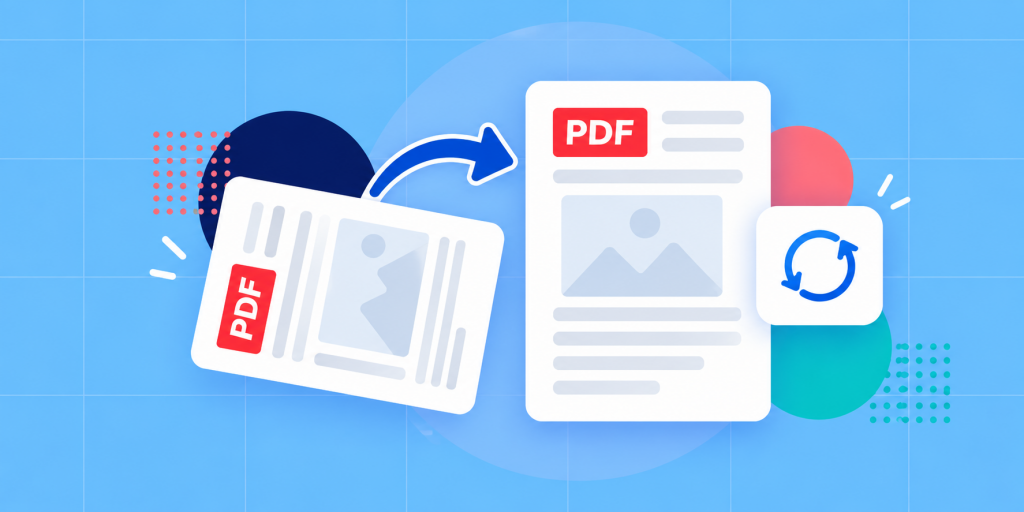
To rotate a PDF document and retain the change you need to use a page-rotation command rather than a temporary viewing option like “Rotate View”. Select the page or pages you want to fix, rotate them to the desired orientation, then save the edited PDF. Close and reopen the saved file to make sure the pages stay in position. If you’re using an online tool, download the processed PDF when done.
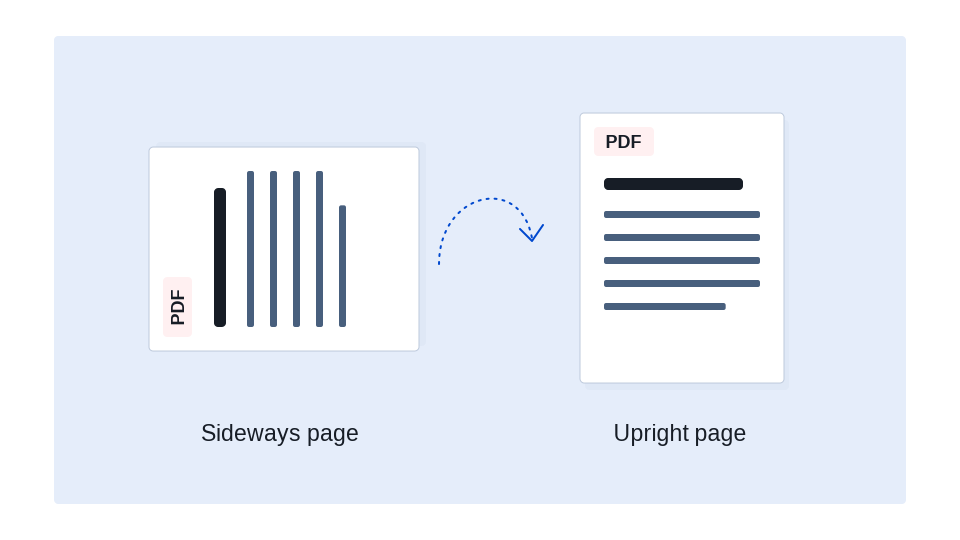
It’s a common problem: you turn a sideways page upright, close the document and, after reopening it, you discover that it’s sideways again! Typically that’s because only the way the document was displayed changed. Soda PDF’s rotate PDF tool creates a rotated PDF you can download, while Soda PDF Desktop lets you change the orientation of selected pages directly. [1]
Before making any changes, verify if the document has just one sideways page that needs to be re-oriented or multiple. The example below begins with a single page so the surrounding pages remain untouched, and then we review how to save and verify the final file.
Why the rotation disappeared
PDF Editors like Soda PDF will treat page rotation and View > Rotate View as two distinct actions. Rotate View will alter how the PDF appears on your screen, but it won’t change the saved orientation of the page itself. Even if you save the document afterward, that viewing adjustment doesn’t become a permanent page edit. For a lasting change, you need to use the Page rotation controls instead. [2]
The distinction isn’t always obvious because both options will make the page look “correct” while you’re working or previewing. If you only need to read a sideways chart or table for a moment, changing the view is the right tool / action. However, if you want the document to open upright for you or someone else later on, you’ll need to rotate the actual page in the PDF.
Rotate just the page that is sideways
Use this approach when most of the documents page are oriented properly and only a single page needs to be fixed. In Soda PDF Desktop, the Page overview makes it easier to select the exact page while keeping an eye on the pages around it. If the document is important, keeping an untouched original gives you an easy way to start over.
Picking the page you want
Make sure you identify the page by its contents, not only by the page number shown in the PDF viewer. For instance, the second sheet in a file may be labelled “page 1” if there’s a cover before it. Try to review the thumbnail before rotating anything, and make sure you haven’t inadvertently selected another page at the same time.
In the example demo that follows, the sideways middle page is already selected in the Page overview. The video demonstrates the rotation and Save steps in Soda PDF:
- Start with the sideways page selected in the Page overview.
Click the counterclockwise rotation control once to turn it upright.
Click Save, then check the overview to make sure the other two pages have stayed upright.
This example only requires a single counterclockwise turn, but your document may need to move clockwise instead, or rotate 180 degrees. We recommend that you use the direction of the text as your guide rather than the shape of the page. A landscape chart, for instance, can be broader and wider than it is tall and still be properly oriented.
If you accidentally rotate the wrong page just reverse the change before moving on, and then select the correct thumbnail. If, on the other hand, you find that the page is now upright but still has too much empty space around the content, see how to crop a PDF for adjusting the visible page area.
Rotate the whole document
You can totate the entire document when you find every page needs the same kind of fix. In Soda PDF you can open Page and choose Rotate. From there, you can apply the change to a full page range or to every page in the document. Now, if you discover that you will need to rotate several pages that aren’t really beside one another, Soda PDF’s help documentation also explains how to select multiple pages using Ctrl. [2]
You can also handle the task online! Just upload the PDF to Soda PDF’s Rotate tool, select the angle you need and download the file after it’s been processed. The online tool supports 90-degree clockwise and counterclockwise turns as well as 180-degree rotation. Once the file has been changed you can open the downloaded version and check the result (rather than just relying only on the preview). [1]
On a Mac, use Preview on a duplicate copy. Show View > Thumbnails or Contact Sheet, select the pages that need turning and click Rotate Left. Hold Option while clicking the rotation tool to turn them right. Preview can save changes automatically, which is why a separate working copy helps. [3] [4]
Before applying the same rotation change to every page in the document, read through the document for exceptions. What do we mean by exceptions? Well, a cover may already be upright, or a scanned page may face the opposite direction from the rest. Those pages are better handled separately on their own. Rotating everything twice won’t fix a file that has different pages needing different corrections.
Save and reopen the rotated file
Once you’ve made the needed changes and you’re sure the pages look right, just save the corrected PDF with a filename you’ll recognize (like “report-upright-fix.pdf”). If you employed an online tool, the PDF you downloaded obviously going to be the “corrected” version and the original file on your computer will remain unchanged. Make a note of where the new PDF was saved so you don’t accidentally reopen the old one.
Next, close the document completely and reopen the saved version from its folder. Go back to the page you corrected and check the pages immediately before and after it as well. If you rotated a longer page range, it’s worth checking the first and last pages in that range too.
View rotation versus saved rotation
What happens if you reopen the file and the page is sideways again? Well, you’ll first want make sure you opened the newly saved file rather than the original. Then check whether you used the Page rotation controls or only Rotate View. Any saving error or restriction that prevented the document from being modified will also need to be resolved before you can treat the file as finished.
This might be a bit above and beyond, but if you really want to be 100% sure that the changed file looks the way it should we recommend opening the corrected PDF in another viewer. This can help confirm the page orientation has actually been saved into the file rather than simply reflecting the way it was displayed in the PDF Editor. Share the version you’ve checked, and keep the original until you’re confident the correction is right.
Fix sideways scanned pages
A scanned page that’s lying on its side can be fixed using the same page-rotation process. Importantly, this means that you don’t need OCR simply to change its orientation. If a double-sided scan alternates between upright and upside-down pages, simply look for the pattern and select only the pages that need the required 180-degree turn.
A page that’s just a little crooked or “off” is going to be a different issue. Rotating it by 90 degrees can put it in the correct general orientation, but it won’t be enough to address a small tilt caused during scanning. Soda PDF’s OCR settings include Deskew alongside orientation options, which can help when you’re preparing a scan for text recognition as well. “Deskew” is the tool used to detect and fix a subtle misalignment in a scanned document. [5]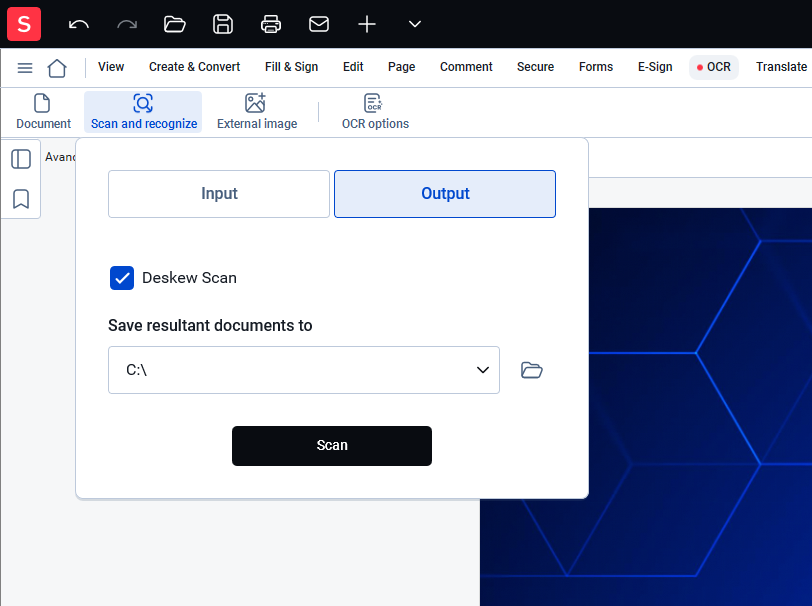
Also, a Rotation fix won’t restore text or content that’s been cut off during scanning. If the edge of a sentence is missing, request or create a better scan. Finish with the saved PDF open at a comfortable reading size: the corrected text should read upright, with the rest of the document still in its intended orientation.