Let’s say you’ve put together a complete report, then it becomes apparent that the cover is at the back. Or perhaps you’ve opened a scanned document and discovered page 5 comes before page 2. Annoying, but fortunately this is usually easy to fix without rebuilding the whole document.
Soda PDF’s PDF editor includes page-organizing tools for working in your browser. Below, we’ll also walk through the Soda PDF Desktop controls for Windows, including a short recording of a cover-page move. [1]
There are a few different approaches you can take, and the trick is choosing the right fix. Moving one page, reversing every page, and repairing a two-sided scan are three different jobs. Here’s how you can tell them apart and choose the right one.
Reorder pages with thumbnails
For a short PDF, thumbnails are almost certainly all you need. They show a miniature version of each page, so you can spot a cover, title page, chart, or appendix without opening pages one at a time.
Begin by first saving your working copy, something like Original-Report-reading-order.pdf. Once that backup is made, you can start to look closely at what’s on each page (not just the number beside the thumbnail). A report labelled “Page 4” may currently be placed in the third position, for instance.
- Open your document in Soda PDF and show its pages or thumbnails.
- Locate the misplaced page by its content. Something like an introduction or chart that obviously belongs elsewhere in the PDF.
- Drag the page thumbnail into the correct place. Soda PDF supports dragging pages to reorder them. [2]
- Review the page just before and just after it to ensure the new order should read naturally across both boundaries.
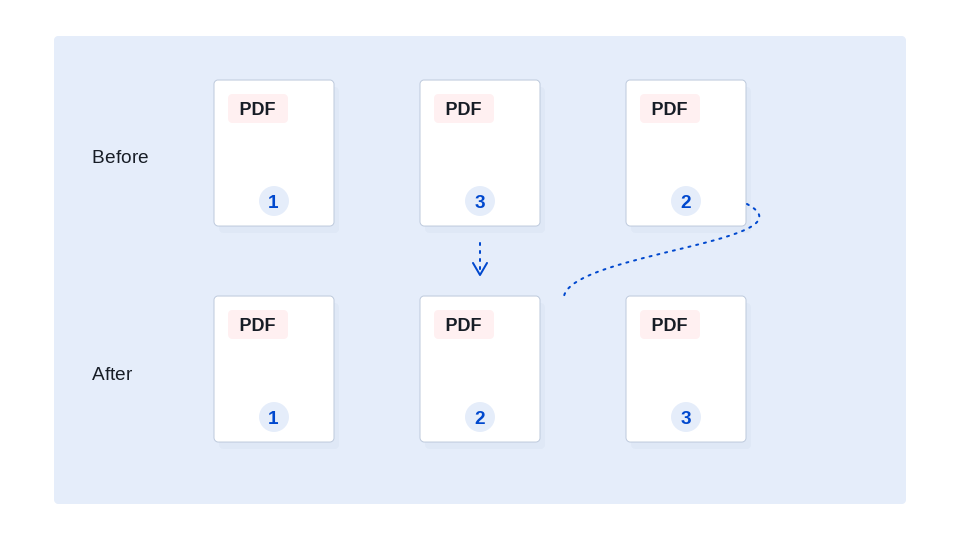
Of course, dragging works really well when the destination is nearby but if you need to move page 95 to page 3 it’s going to be easier to use a position-based command than to drag the page through a long document.
Selecting several pages at once
If an entire chapter or appendix is out of place, you’ll likely want to move those pages together at the same time. In Soda PDF, Ctrl can be used to select multiple page thumbnails. Verify the selection before you make a change, especially if a document contains similar looking content and pages. [3]
Keep related pages in their existing internal order unless there’s a reason to change that, too. And after moving a group, check the new positions before making the next move.
Using a Mac? Apple’s Preview also has a “thumbnail based” way of rearranging PDF pages. You should be able to choose View > Thumbnails and then simply drag pages into the position the need to be in. Remember that “Preview” might save changes automatically, so make sure to use File > Duplicate first if you want to preserve the original as a backup. [4]
Move a page to a specific position
Let’s take an example where you have a four page document and the cover has been incorrectly moved to the last page. No other changes are needed, you just need that one page to become the first.
In Soda PDF Desktop, the Page > Move command lets you pick the source page and place it Before or After a target page. [2]
- Open the Page tab and select Move.
- For Pages to move, enter 4 (the cover’s current position).
- Choose Before page 1 as the destination, then click Move.
- Check that the cover is now first, and save the PDF.
If the page belongs at the end, select After the last page. If the content needs to be placed in the middle of the PDF, use the page before or after which it should sit. You don’t have to work out every new page number in advance.
Choose the document ordering problem that looks most similar to yours. The cards show which original pages should appear in the finished PDF.
The pages are otherwise in order. Move the current page 4 before current page 1.
Here you don’t need to reverse the document. Move the current page 3 before current page 2.
If every page is in reverse sequence, use Page > Reverse instead of moving pages one by one.
A possible six-page result is 1, 3, 5, 6, 4, 2. It needs interleaving, not reversing. Your scanner’s order may differ.
One common mistake people make is reusing an old page position. After the cover page moves from position 4 to the front, you’ll find that the page that used to be at position 1 is now located at position 2. When you’re making several edits, check the thumbnails again between moves.
If a page is missing rather than misplaced, that’s a different problem with a different solution. Basically you’ll need to add it. You can see our guide to how to add pages to a PDF, then return to the page order once it’s in the file.
Reverse a back-to-front document
You’ll find that “Reverse” is often the quickest remedy for a document whose order is completely backward. This often happens when a scanner is fed the stack of documents from the wrong end, leaving the last page first and the first page last.
In an editor like Soda PDF, you can open the Page tab and choose Reverse. This action will completely flip the page sequence from end to beginning. For example, 4, 3, 2, 1 becomes 1, 2, 3, 4. [2]
The next step is to verify. Check the first page, the last page, and a few spots in the middle after reversing.
Also, reversing is not the same as rotating. A page that’s upside down but in the correct position in the document actually needs a rotation, not a change in reading order.
Correct order after a merge or scan
Sometimes the pages in your document will be fine within each section, but the sections are in the wrong order. This can happen if someone merged the appendix before the report, for example.
If you still have the separate files, the best approach may be to simply merge them again. Soda PDF lets you drag the source files into the right order before you merge them. [5] That’s often easier than correcting a long combined PDF page by page.
If only one or two pages are out of place, keep the merged document and use Move. Check the section breaks: the last page of one document should lead naturally into the first page of the next.
Scans that came out back to front
Using two-sided paper can sometimes lead to mistakes where the front sides of the documents were scanned first and the back sides afterward. This means you might end up with all the odd pages together, followed by the even pages in reverse order.
Here’s a six-page example. The PDF shows 1, 3, 5, 6, 4, 2. Simply reversing it gives 2, 4, 6, 5, 3, 1—still wrong. The pages need to be interleaved.
What to do: first, move the page at current position 6 before the page at position 2. Then move the page now at position 6 before the page now at position 4. This works for the example shown, not every two-sided scan.
Know the order you want? Find out exactly what to move.
Enter the pages as they appear in your PDF, then the order you need. We’ll turn that into a step-by-step list for Soda PDF’s Page > Move command.
List pages from the first thumbnail to the last.
Use exactly the same labels, in the right reading order.
You should employ a comma, space, or line break between page labels. Labels must be unique (for example, 1–6 or A–F); the planner can handle up to 60 pages. The numbers are identifiers for the page content, not necessarily their current positions in the PDF.
Using the instructions: the position in each step means the page’s place in your PDF at that moment. After completing a move in Soda PDF, let the thumbnail order update before following the next step.
How do you apply this to your own scan? You’ll want to scan or review the document with the printed page numbers and look out for things like paragraphs that continue into the next sheet, dates, or a question followed by its answer. If you’re editing very large multi page document the best approach is the plan a bit up front, and note your “correct” order of pages before moving or editing anything.
Also note that you do not need OCR just to reorder scanned pages. The thumbnail pages can be moved as images.
Save the PDF with the intended sequence
Once everything in the new arrangement of pages looks right, save the working copy, close it, and open that saved file again. This might seem over cautious but this extra check will catch the simple but surprisingly common mistake of reviewing the correct order on screen and then accidentally sending an older copy.
Purely reordering the document should leave you with the same number of pages in the new document obviously. However, the page count alone won’t be enough to tell you whether you’ve moved a page to the right spot. Make sure to review the opening pages, the pages you moved, and the boundaries between chapters or merged files.
There’s another very important detail worth mentioning! Be aware that moving PDF pages doesn’t necessarily update the numbers printed on the pages. This means that every bookmark or link, or a typed table of contents (if the document had one). Those references can still point to an old location(s). If people reading the file will use them to navigate the document, be sure to test them in the final file.
One more caution: if the PDF document is digitally signed, rearranging its pages changes the document and may in fact invalidate the signature. This is another reason why it’s worth keeping the signed original PDF untouched and confirm whether you need a newly signed version. [6]
That’s it. The good news is most page-order problems don’t require complicated editing. The right tool, careful checks, and a saved copy you know is correct will make the process pretty painless.
Sources
- Soda PDF — PDF editor. Online PDF editing and organizing.
- How to Move and Reverse Pages — Soda PDF. Desktop Move, drag-and-drop, and Reverse controls.
- How to delete pages? — Soda PDF. Desktop multi-page selection using Ctrl.
- Apple — Combine PDFs in Preview on Mac. Thumbnail reordering and duplicating the original.
- How to combine or merge multiple files into 1 PDF file? — Soda PDF. Organizing files before a merge.
- PDF Association — PDF and Digital Signatures. Why changes made after signing can affect signature validation.