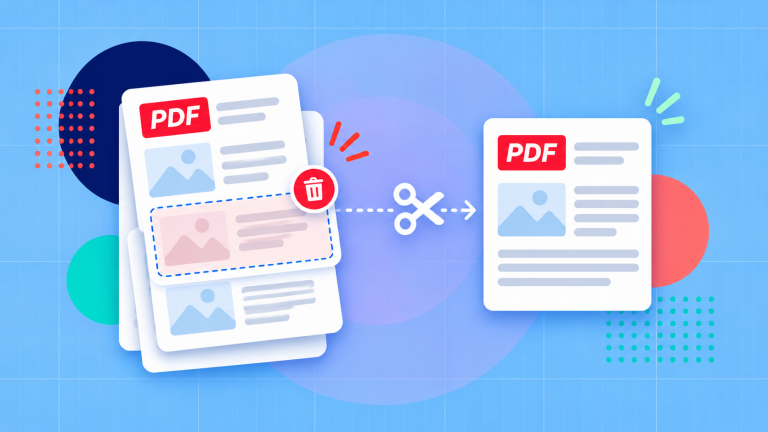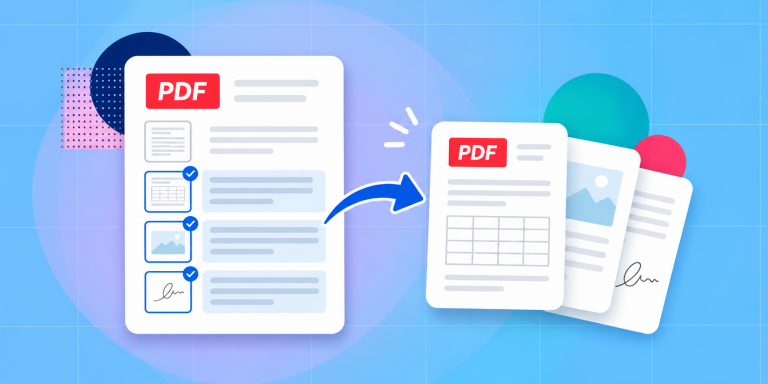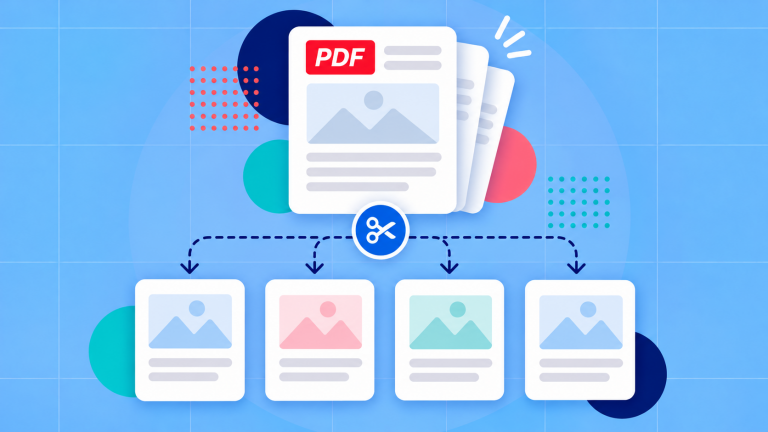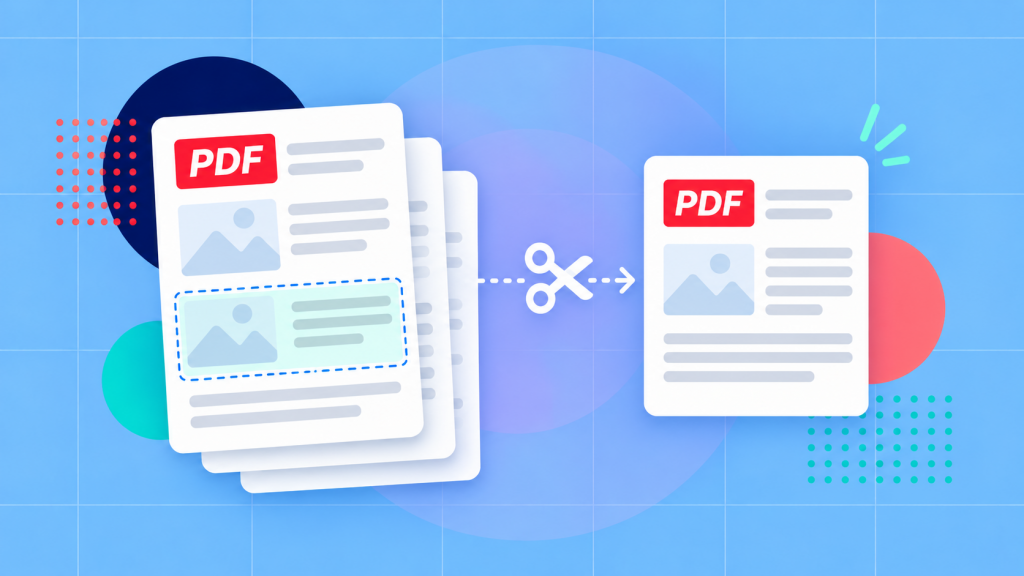
If you want to save a specific single page from a PDF document, you’ll find the easiest method is to extract it into a new file. This creates a separate PDF which will contain nothing except the one page you need. You can do this using tools like Soda PDF’s split PDF tool in your browser or the Extract feature in an editor like Soda PDF Desktop.
Imagine a situation where you’ve received a 32-page document but only need to email or send someone the receipt on page 12. Rather than sharing the entire file you just can save that one page as its own PDF document to save the recipient time.
There are other ways to accomplish the same thing. For instance you could “print” a selected page to PDF or even convert it to an image. The best option will mostly depend on what you need the saved page for.
Save the page as a separate PDF
You’ll almost certainly find extracting to be the best option in most cases, especially when your goal is to keep a page in PDF format. It allows you create and save a new document containing just the page you select.
Before starting, locate the page you want to save and check its position in your PDF viewer. This is important because the page number printed on the document isn’t always going to be the same as its position in the file.
For instance, a document or report might have an unnumbered cover page, so the page labelled “5” is actually the sixth page in your PDF viewer.
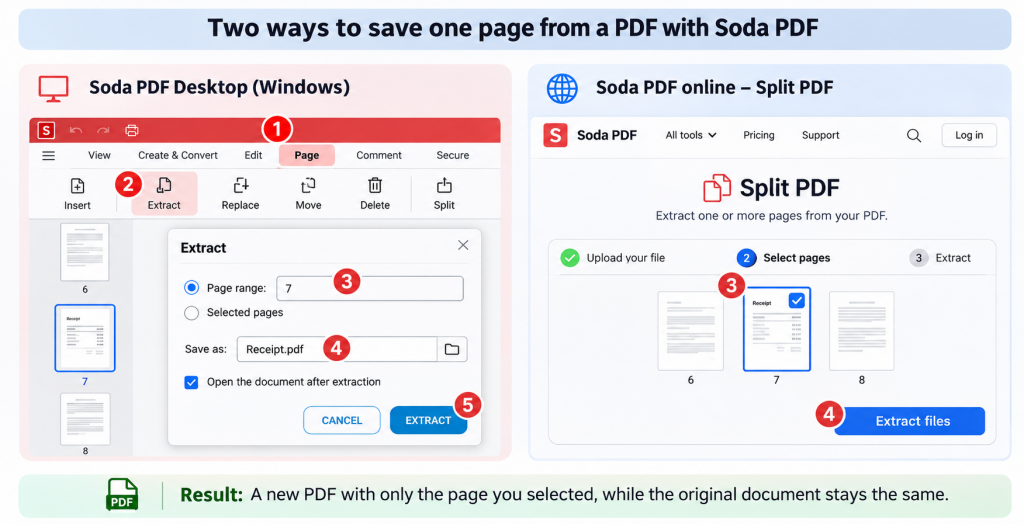
Using Soda PDF Desktop on Windows:
- Open your PDF in Soda PDF and select Page > Extract.
- Choose the page range option and enter the page you want to save, such as 7.
- Enter a suitable filename for your new PDF, such as Receipt.pdf.
- Use the folder icon to select where you want to save it.
- Click “Extract” to create your new PDF file.
You can also select the option to open the extracted document automatically when it’s ready.[1
Using Soda PDF online:
If you don’t have Soda PDF Desktop installed, you can do the same thing in your browser.
- Open Soda PDF’s Split PDF tool.
- Upload your document.
- Select the page you want to save.
- Click Extract files and download the resulting PDF.
The new file will contain only the page you’ve selected, while your original document remains unchanged. [2]
Whichever method you use, open the new document once you’re done to make sure you’ve saved the correct page. Giving it a descriptive filename, such as Order-1041-receipt.pdf etc.., will also make it easier to locate and identify later.
Save a few specific pages
Sometimes selecting and sending a single page isn’t enough. You might need two pages from a report, several pages from a contract, or a receipt along with its details.
Fortunately you also can extract multiple pages at once instead of saving them each individually.
If all the pages you need are next to each other, simply enter a range. For example, entering 3-7 in Soda PDF Desktop will extract pages 3,4,5,6, and 7 into a new PDF document.
Obviously this approach is especially useful when you’re sharing an entire section of a larger document but don’t want to include everything else.
Picking pages that are not consecutive
It’s not that much more complicate to extract pages that appear in different parts of the document.
In Soda PDF Desktop, for instance, you would hold Ctrl while clicking the page thumbnails you want to include. Once you’ve selected them, right-click one of the chosen thumbnails and choose Extract/ [1]
The online Split PDF tool also supports combinations of individual pages and ranges. For example, entering 1,3,5-7 lets you select pages 1, 3, 5, 6, and 7. [2]
This is especially useful when you need to collect information scattered throughout a larger document into a smaller, more manageable PDF file.
For more examples, including a detailed illustration of how page selection works, see our guide on how to extract pages from a PDF.
Use Print to PDF when a printed copy is enough
If for whatever reason you don’t have access to a PDF extraction tool, you can also “hack” your way through by saving an individual page using your computer’s print function.
The way it basically works is instead of sending the page to a physical printer, you choose an option that saves the print output as a PDF.
This approach can work really well with straightforward documents like receipts, instructions, or reports etc.. where you mostly just need a readable copy of the page.
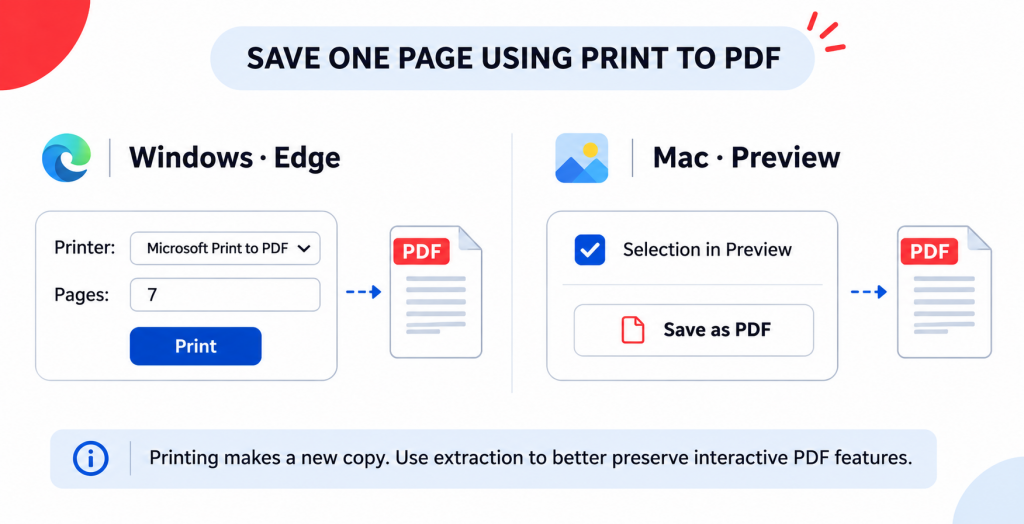
On Windows, using Microsoft Edge:
- Open your PDF in Microsoft Edge.
- Press Ctrl+P to open the print dialog.
- Choose Microsoft Print to PDF as your printer.
- Under Pages, select Custom and enter the page you want, such as 7.
- Check the preview to make sure the correct page is selected.
- Click Print, then choose a filename and location for the new PDF.
Despite the name, clicking “Print” won’t actually produce a paper copy when Microsoft Print to PDF is selected, it will actually save a PDF file instead.[3]
On a Mac, using Preview:
- Open your PDF in Preview.
- Select View > Thumbnails to display the document’s pages.
- Click the thumbnail of the page you want to save.
- Choose File > Print.
- Select Selection in Preview to print only the selected page.
- Open the PDF menu and choose Save as PDF.
- Choose a filename and location, then save.[4][5]
Both of these methods will provide you with new PDF file containing just the selected page without requiring a dedicated PDF editor.
How printing can change the PDF
Now, you should be aware of one important difference between extracting a page and printing it to PDF file.
Extraction will export the selected page from the original document. Printing will actually create a new PDF document based the page’s “print” output.
For most normal documents the results may look the same, but printing doesn’t necessarily preserve everything that made the original PDF work.
For example, any given PDF file might contain more sophisticated features like fillable form fields, clickable links, images, or annotations. When using the “print” method you may find that some of these features are changed or lost in the final document.
Depending on your settings, printing can also affect how the page looks. For instance you may discover that content has been resized to fit the paper which will result in different margins and smaller text.
If you only need to read or share the information, these differences may not matter. However, if you need to retain the document’s original functionality, extracting the page is generally the better starting point.
It’s worth checking the saved file either way, especially when working with forms or other interactive documents.
Save the page as an image when required
Not every website or application accepts PDF uploads. Sometimes may find that your need to provide an image instead, such as a JPG or PNG etc…
In this situation you need to convert the PDF to an image which, fortunately, is very do-able.
To save one PDF page as a JPG using Soda PDF:
- First, extract the page you need into a separate PDF using the instructions above.
- Open Soda PDF’s PDF to JPG converter.
- Upload your new one-page PDF.
- Download the converted image.
- If your download arrives as a ZIP file, open it to access the JPG.
Soda PDF’s converter creates a separate JPG for every page in the uploaded document. By extracting your page first, you avoid converting pages you don’t need. [6]
Before actually uploading or submitting the image, make sure to open it and check that everything is readable (especially small or distorted text).
Understand why one page can still be large
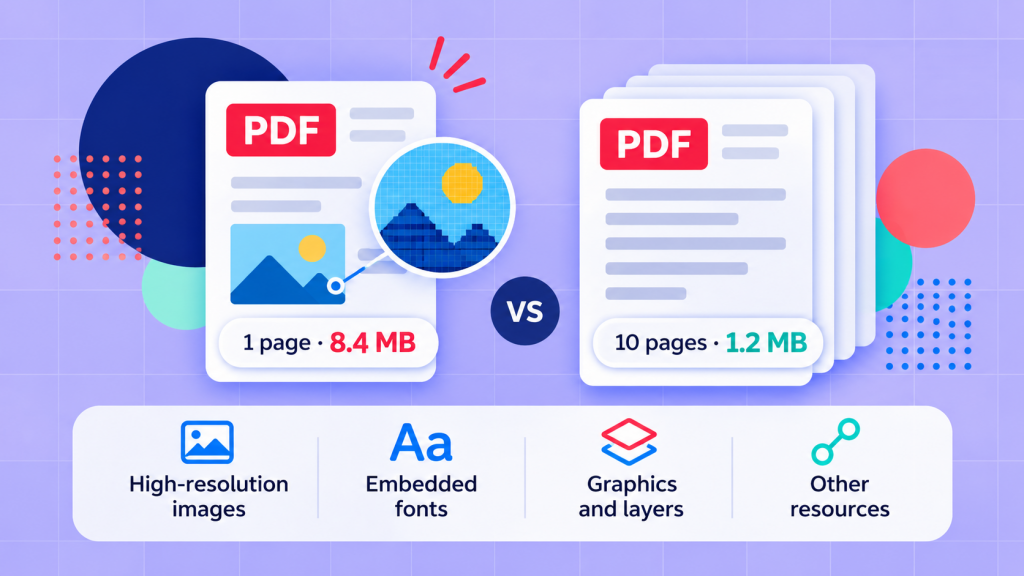
You might expect a PDF containing just one page to have a very small file size. That’s often true, but not always.
Keep in mind that the amount of space a PDF takes up will largely depend on what’s inside it, not simply how many pages it has. For instance, a single page containing a very high-resolution scanned image could be huge (several megabytes) , while a 15 page document made up mostly of text might take up much less space.
Elements like images, embedded fonts etc.. all contribute to a PDF’s overall file size.[7]
If your extracted PDF is still too large, you can try reducing its file size using a PDF compression tool.
Compression can sometimes affect image quality so if your document contains very fine print, scanned text, or detailed graphics, we recommend you check that everything remains readable after compression.
It’s also important to note that converting a PDF into a JPG isn’t guaranteed to make it smaller. The result will depend on the nature of the original content and the image quality.
Sources
- How to Extract a page from PDF Document – Soda PDF
- Soda PDF — Split PDF online
- Microsoft — Print in Microsoft Edge
- Microsoft — Print handouts using Adobe Reader
- Apple — Print PDFs and images in Preview on Mac
- Apple — Save a document as a PDF on Mac
- Soda PDF — PDF to JPG
- Adobe — PDF optimizer settings