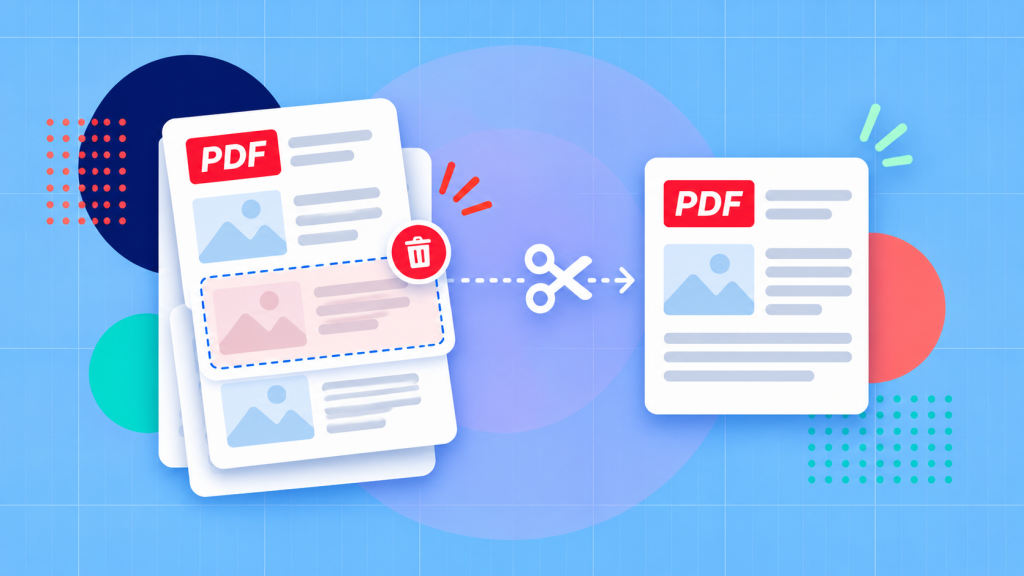
First be sure to make a copy of your document, then choose the pages you want to remove, and delete them. After that, you can save or download the new file and review the pages on either side of each deletion. You should make sure to go by the page’s position in the PDF viewer, not just the number printed on the page.
Maybe a scanner added an empty sheet to your report. Or a document that was ready to share still has three pages of outdated pricing at the back. You don’t need to rebuild the PDF to fix either problem.
The good news is you can easily remove those pages with Soda PDF’s delete PDF pages tool in your browser, or work directly with page thumbnails in a editor like Soda PDF Desktop. The challenge usually isn’t finding Delete, it’s ensuring that you’ve selected the right pages, especially when if the PDF has its own printed page numbers.
In this article we’ll begin with a single page, then cover ranges and pages that may be found scattered through a document. A specific worked example below will also demonstrate how deleting several pages affects their respective positions.
Delete one page
First, you’ll want save a separate working copy, just in case. For instance, leave Report.pdf untouched and edit something like Report-cleaned.pdf. This way, if you find that you’ve removed the incorrect page (or made any other errors), you can still return to the original instead of trying to reconstruct it.
Next, find the page in the thumbnail or page preview. Watch out for a common mix-up: the third page in the PDF might be labelled “1” in the document itself because the cover and introduction come first.
Review its position in the PDF viewer closely, not just the number printed on the sheet.
In a PDF editor like Soda PDF, you can simply open the Page tab and find the page in Page Preview. Right-click the unwanted thumbnail, choose Delete, and confirm with Yes. [1]
Here’s the same process with a real five-page example. The third page is blank, and the original document has been kept separately.
- Select the blank third-page thumbnail.
- Right-click it and choose Delete.
- Confirm with Yes.
- Save the working copy and check that four pages remain.
Prefer to use your browser? Open the Delete PDF Pages tool, upload your working copy, select the page position you want to delete, and then choose Delete Pages. Download the new file and open it to make sure the correct page disappeared.
Delete a consecutive range
Say a report has three draft pages you no longer need. They’re currently at positions 6, 7 and 8. Sure, you could delete them one at a time but doing that will end up shifting the later page positions after every deletion. It’s typically simpler to identify all three in the original working copy and delete them all together.
In most editors like Soda PDF Desktop, you can achieve this by holding Ctrl while selecting those thumbnails. For a continuous run, you can also drag across the thumbnails or use the Page Range field in the Tool Area. Before confirming, make sure to confirm that only the pages you intend to delete are selected. [1]
The remaining pages stay in order, but their positions change.
Check the selection before you commit
Before saving the “final” document, make sure to look closely at the first and last pages you’ve selected, then review the pages immediately before and after them. This avoids making a surprisingly common mistake: removing a newer version of a page while retaining the draft. Similar headings and layouts can often conceal a revised date, table or conclusion.
Once you’re satisfied with the selection, choose Delete and confirm. The browser-based tool will also accept page ranges: enter the range, such as 6-8, and choose Delete Pages. [2]
Now check the new join. In our example, the original page 9 should follow the original page 5. If you need to remove more pages, find their current positions again; don’t assume the numbers you wrote down before the first deletion still apply.
Delete pages in different parts of the file
Unsequential pages are where a little planning is required. To illustrate: consider a situation where you’re cleaning up a report with a blank third page, an old appendix at pages 7–8 and a duplicate at page 11. If you delete page 3 first, every later position shifts. The page that used to be 11 is now 10.
Note the original positions and select them together. In a Desktop application you can achieve this by holding Ctrl and clicking each unwanted thumbnail. On the web, the delete tool accepts individual page numbers and ranges. Review the selection before you confirm. [1] [2]
Here’s what happens to the page order if you remove original positions 3, 7–8 and 11 from a 12-page PDF.
Before and after: deleting scattered PDF pages
Example: a 12-page PDF with original pages 3, 7, 8 and 11 removed.
12 original pages → 8 pages remain.
Pages that remain (original position → new position)
New joins worth checking
- Original page 2 is now followed by original page 4.
- Original page 6 is now followed by original page 9.
- Original page 10 is now followed by original page 12.
Blue outlines mark the first page after a deletion. This example uses page positions in the original PDF, not numbers printed on the pages.
For each page, jot down a reason as well as a number: “blank scanner sheet,” “obsolete price list,” or “duplicate invoice.” That makes your final review much easier. If you’re not sure if you’ll need a page later, save it separately before deleting it. Our guide to how to extract pages from a PDF explains exactly how to make a new file from the chosen pages. Extraction keeps a copy of that material while deletion will remove it from the document you’re editing.
Remove a blank or duplicate page
It’s important to note that a page can look empty at thumbnail size without actually being empty. Things like scanner shadows, faint handwriting, signature boxes or a footer can easily disappear when the whole page is squeezed into the sidebar. This is why it’s worth opening the page at a readable size before you remove it.
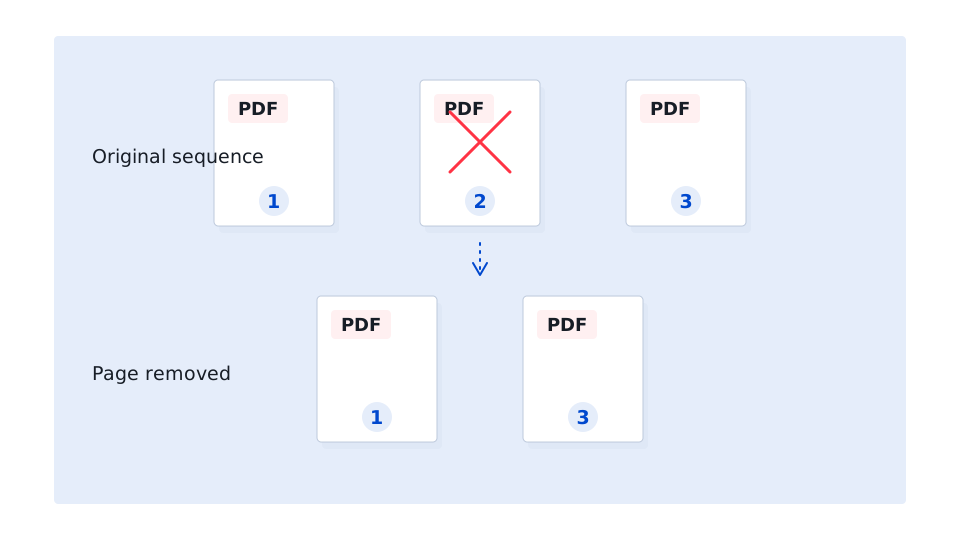
Duplicate pages will need a different check. Two versions of an invoice or report can look the same until you compare things like the date, amounts, signatures or handwritten answers. Make sure to keep the version of the document you actually need, then use the single-page deletion steps above.
There’s one more thing to remember: deleting a PDF page won’t necessarily fix references to that page. For example, a contents page may still say “see page 12” or a bookmark / link may still point to a (now) outdated place. You should make sure to verify those elements in the saved PDF document, rather than assuming they’ll update automatically.
- Each new join: does the text still make sense from one page to the next?
- The table of contents, internal links and bookmarks, if the PDF has them.
- Any important forms, annotations or signatures. Editing a digitally signed PDF can affect signature validity, so check the final file before relying on it.
Recover a page when you still have a source copy
If you find that you remove the wrong page and haven’t yet saved your change, check if your current editing session can undo it. On the other hand, if you’ve already saved the shortened file, the safest recovery method is usually the original PDF you set aside at the beginning (assuming you saved it at the start!).
When deletion was the only change you can usually just duplicate the original document and retry. This approach is going to be quicker and less error-prone than inserting a page back into a document you’ve otherwise left untouched.
Of course if you’ve made several other useful edits that you don’t want to repeat, you also have the option of bringing back only the missing page. Extract it from your original into a separate one-page PDF, then use Page → Insert (in Soda PDF Desktop), select From external file, and place it before or after the appropriate retained page. Check the order on both sides before saving. [3] [4]
What can be recovered after saving
Saving won’t necessarily mean a deleted page is gone forever. A preserved original, a backup, or an earlier version in your document storage may still contain it. However, if you only have the shortened PDF and are missing a version that includes the missing page etc.. then you shouldn’t expect another Save to bring it back.
Keep the source copy until you’ve opened the finished PDF and checked it. You’ll find that small habit matters much more than memorizing a particular program’s undo shortcuts.