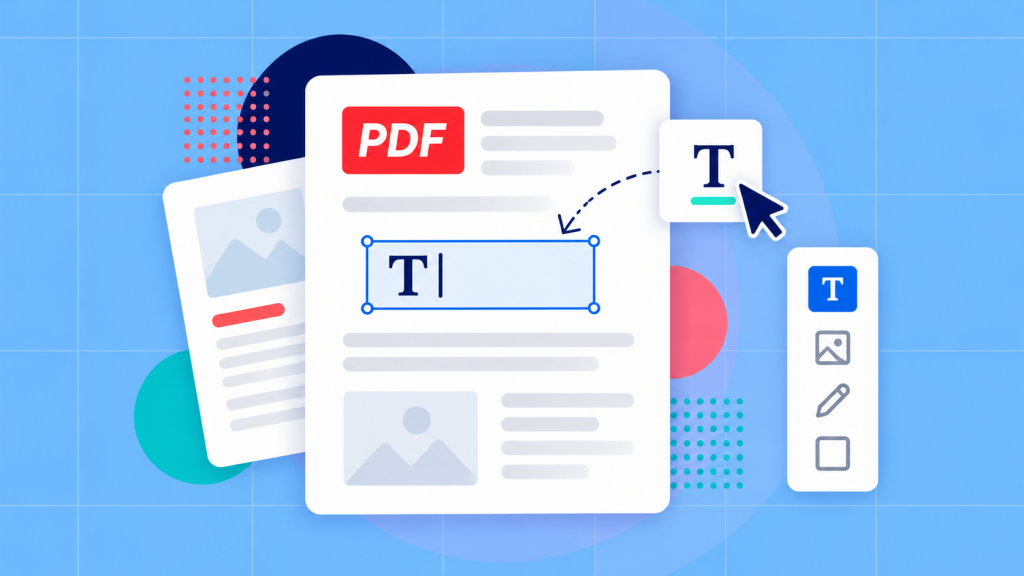
Adding text to a PDF can be simpler than you might think as long as you have a PDF editor. You can open the document in a PDF editor, select the text-box tool and click where you want the new text to appear. From there, you can type your wording, move it into position and adjust the formatting before saving. Of course, you can also use a comment in cases where you’re leaving feedback for someone rather than adding information to the PDF itself.
Ok, let’s say you’ve got a PDF document that’s almost ready to go. However, you find that it’s missing a date, a piece of information, a reference number, or some other important detail. Of course you wouldn’t want to recreate the entire PDF document just to add a few words, and fortunately, you don’t have to.
With a PDF editor like Soda PDF, you can add text and other kinds of items directly to the page and position it exactly where you need it. The process is fairly simple, but there is one thing worth figuring out before you start: are you trying to add something new, or trying to correct text that’s already there?
The difference matters because each task requires a different approach. Let’s walk through how to add text, make it look like it belongs and save your changes without disturbing the rest of the document.
Choose between adding text and editing existing text
Let’s say someone sends you a delivery sheet, but they’ve forgotten to include the order number. There’s a blank space where it should go, so all you need to do is add “Order 2XXX.” That’s would be perfect job for a text box.
If the order number is already there, except it has the wrong 2XXX number you could try placing the correct number over the old one, but that’s likely to create a confusing mess. You may end up with overlapping characters and the incorrect number could still technically be part of the document even if its partially hidden.
A better solution is to edit the existing text directly.
Also, if you’re working with forms, note that adding a text box doesn’t turn an empty space into a dynamic / fillable field. You’re just placing new text on the page. If the PDF already has a field designed for entering information you’ll want to use that instead.[1]
Place a new text box on the page
In the following example we’ll use Soda PDF Desktop to demonstrate the process.
Before making any changes, make sure to save a copy of the original PDF. It’s a small precaution, but you’ll find it’s worth doing if you accidentally change something or need to start over.
Once you’ve opened your working copy in an edition of Soda PDF that supports text editing, you’re ready to add your text.
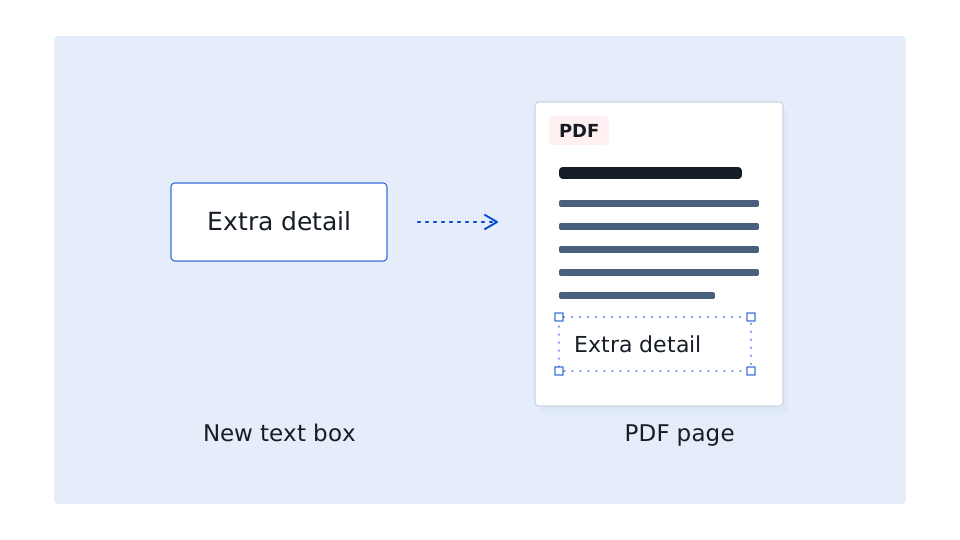
- Go to the page that needs the label and choose Edit > Add Text.
- Click the empty area where the new wording should begin. A text box appears.
- Type the full label, such as Order 2846. Include any punctuation or unit the reader needs.
- Select the added text to adjust its font, size or color if necessary.
- Switch to View mode and read the label in the context of the whole page.
That’s really all there is to getting the text onto the document.
You can also generate a text box by double-clicking an empty area while you’re in Edit mode.
If you notice a typo or want to add another word, you just need to click inside the box and continue editing. Just be careful in terms of where you click as clicking outside the text box can result in selecting something else on the page or trigger another editing action.[1]
Placing the box where you want it
Sometimes getting your text into the PDF isn’t enough, you also need to put in a bit of work to make it look as though it “belongs” in the document.
This can be achieved in a straight forward manner. You should start by zooming in on the area where you’re working as you’ll find this makes finding the right position easier when you can clearly see the surrounding text, lines and other elements.Let’s say, for instance, that you’re adding a name above a blank line and you want the letters to sit comfortably above it, not cross through it.
If you’re labeling an image or diagram, you’ll find the zoom makes it easier to place the text close enough that readers can tell what it refers to.
Give yourself a little room to work, too. A label that’s squeezed between two paragraphs isn’t going to look particularly good, even if the wording is correct.
Once you’re satisfied, zoom back out. What looks perfectly positioned up close can sometimes look awkward when you view the whole document.
One final point: if you find yourself trying to cover an existing sentence with a new text box, you may be using the wrong approach. Our guide on how to edit a PDF explains how to change the original wording instead.
Move and style the text box
Moving the text box is simple as you should be able to just move your pointer onto the border, away from the handles, then click and drag the text box wherever you want it. Release the mouse button when you’re happy with its position.
The important thing is to grab the border rather than clicking inside the words. Clicking on the text lets you edit what you’ve written, while dragging the border moves the whole box.[2]
If you find the box is too narrow or takes up more room than it needs – a common occurrence – you can always resize it by dragging one of the circular handles. Make sure the entire label remains visible and doesn’t overlap anything nearby.
If you find that you need to adjust the size of the letters themselves simply select the text and use the font-size control. This is good to know as resizing the box won’t necessarily solve a problem caused by oversized text.
Soda PDF also lets you change the font and color, or apply bold and italic formatting. Select the characters you want to change, then use the text controls to make your adjustments. [3]
You probably won’t need anything fancy here. If you’re adding an order number to a business document, for instance, a simple font that matches the surrounding text is usually your best bet.
Pay attention to alignment as well. If your label sits beside a heading or another piece of text, try lining up their left edges. It’s a subtle detail, but it can make the addition feel much more natural.
Switch to View mode whenever you want to check your progress. A few small adjustments are usually all it takes.
Match the surrounding font
Start with the nearby text’s size, color and general appearance. A plain reference number rarely needs to compete with the document title. Use the same visible style where practical, then check the whole line at normal size. Matching the font name alone doesn’t guarantee that a longer label will fit.
When the original font is not installed
What happens if you open a PDF and find that the font used in the document isn’t available in your editor?
First, note that this doesn’t necessarily mean there’s anything wrong with the PDF document as many files contain embedded fonts that allow the original text to display correctly, even when those fonts aren’t installed on your computer.
Soda PDF distinguishes between these document fonts and the system fonts available in Windows. If the original font isn’t installed, the editor may choose to use another available font when you add text.
If you happen to have a licensed copy of the original font, you can install it and restart Soda PDF. Otherwise, look for something similar.
You probably don’t want to spend too much time chasing an exact match for a single reference number or date. The important thing is to make sure your text is clear, readable and reasonably consistent with the rest of the page.[4]
Use a comment when the text is feedback
In Soda PDF, you can select Comment > Sticky Note, then click beside the section you want to discuss. Type your message into the note and close the popup using X.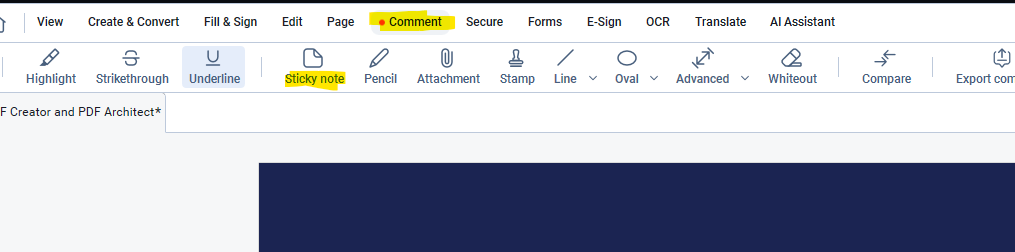
The comment remains associated with that location and anyone reviewing the PDF can click the note’s icon in View mode to open it and read what you’ve written[5]
The best approach is to use “normal” page text / text boxes when the missing detail belongs in the document the recipient should read and only use a comment when you want to make a suggestion that someone needs to consider or respond to. Importantly: A note’s icon and popup behave differently from a visible page label, so don’t rely on a closed popup for instructions that must be immediately visible.
After making the changes you need to save the edited PDF under a clear new filename, then reopen that file. At this point you can review the document and make sure the full label is visible in the right place, or that the comment opens beside the intended passage. Send that checked copy and keep the original available if you need to revise the addition.