A PDF “form” is really just a document that’s been designed to collect information, such as a name, address or answers to specific questions. This means that most forms, in contrast to other kinds of PDF documents, will let you click directly into fields and type your answers. Other types of forms include those that are simply pages with blank spaces where you’re expected to write. Both can typically be completed digitally, but the method can depend on the type of form you’re working with.
Now, you may have tried clicking a blank line in a PDF form, only to discover that nothing happens. There’s no cursor, and its obvious that you can’t type anything. This doesn’t necessarily mean something is wrong with the file, it usually just means that the form was created without interactive fields. This is precisely where a PDF editor like Soda PDF is useful as it will allow you to place your answers directly onto the page.
Before you start, it’s worth checking what kind of form you have. If the fields are interactive, you can usually fill them out in a regular PDF reader. If they’re not, you’ll need to add your answers another way with a specific tool.
What makes a PDF a form
A form asks you to supply information in a defined arrangement. It might collect a mailing address, an application response or a choice between options. The PDF format carries the page; the form’s design determines how you can enter the answers.
There are interactive forms and there are “flat forms”. An interactive form contains selectable controls, such as text fields and checkboxes. Flat forms have the same visible labels and answer spaces without those controls. A flat page can still be completed digitally with a text-placement tool. [1]
Check whether the form has fillable fields
Download the PDF if you’re only viewing an attachment preview. Open the downloaded file in a PDF reader and inspect the first answer area. A line and a field may look almost identical until you try entering something.
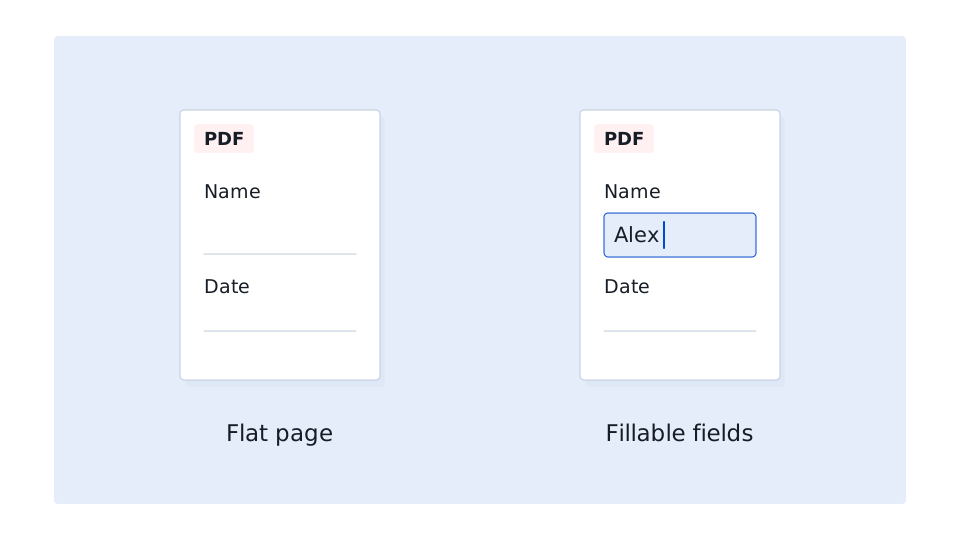
How to tell a fillable form from a flat one
You can use whatever your preferred PDF reader is on a desktop computer, select the Hand or Select tool and click inside an answer area. Now, if it’s an interactive field you should find that you are able to type your answer immediately. Checkboxes should respond when clicked, and pressing Tab should move you to the next available field. You can also use Shift+Tab to move backward through the fields. [1]
Some PDF forms contain a mixture of interactive fields and spaces intended to be completed manually so if you find that clicking the answer area does nothing it’s worth trying a few other fields before assuming it’s not a fillable form.
This might seem obvious but note that you should also make sure you’re working with the downloaded PDF rather than a preview inside your email or browser. If the fields still don’t respond when opened in your PDF reader, it’s very likely that you are trying to edit a flat form that requires you to add your answers manually.
Fill a form with interactive fields
If a PDF document has truly interactive fields completing it is pretty straightforward. You can just enter your answers directly into the form without worrying about changing the document’s layout or adding separate text boxes.
Here’s how to complete an interactive form using Soda PDF, for example:
- Open your PDF form in Soda PDF and click the first field where you need to enter information.
- Type your answer directly into the field. Press Tab to move to the next field, or click it manually. If the form includes checkboxes or multiple-choice options, select the appropriate answers.
- Continue filling out the form, making sure you’ve completed all required fields and followed any instructions for dates, numbers or other information.
- When you’re finished, use the Save As option to save the completed PDF under a new filename. This allows you to keep the original blank form.
- Close the document and reopen your saved copy to make sure your answers are visible and correctly positioned before submitting it.
Some PDF forms also include a Submit button which is often configured so that clicking it sends your information directly to an organization rather than saving the document.
Another thing to look out for is fields in the form that are too small to contain your answer. When added text appears to disappear or gets truncated, click outside the field to see how it looks when the form isn’t being edited. Hopefully it will be clear that the text fits but if the full answer still isn’t visible you should probably check with the organization that provided the form about how to include the remaining information.
Type onto a flat form
Use this route when the PDF contains answer spaces but no working fields. In Soda PDF Desktop, Fill & Sign places responses on the page while leaving the original form design in place. [2]
Place text and checkbox marks
- Open the downloaded form in Soda PDF Desktop and select Fill & Sign.
- Choose Text, then select the place where your answer belongs and type it.
- Position the response so it sits within the intended answer space and doesn’t cover the question.
- For a printed checkbox, choose an appropriate mark, such as Checkmark, and place it over the correct box.
- Save a completed PDF copy and reopen it to inspect the answers at a readable zoom.
For an address line, place the street address beside its label rather than typing one large block across several questions. Zooming in while you position a short response can help you keep it clear of the printed line.
If you need a separate text box, Soda PDF Desktop also documents Edit > Add Text. That’s another way to place new text, not a way to turn the blank line into an interactive field. [3]
Correct an answer after filling the form
Correcting errors when filling out forms is usually easy enough, which is fortunate because it’s very easy to make a mistake when completing a lot of information. The process to correct the error often depends on how the information was originally input.
If you were working with an interactive form you just need to click the field containing the mistake and edit your answer as you normally would. From there you should be able to delete the existing text, replace it or correct individual characters.
If you’ve added checkmarks or other marks to a flat form using a tool like Soda PDF’s Fill & Sign tool, you can select and delete them after adding them. It’s just a matter of removing the incorrect mark and place a new one in the correct position.
For text you’ve added using Soda PDF Desktop, switch to Edit mode and select the text you want to change. You can edit text objects that the software recognizes as editable, but this doesn’t necessarily work for text that’s part of a scanned image. [4]
If the PDF has already had its answers saved then the process of editing or changing it becomes a little more complicated. In those cases, the text you entered may no longer be digitally editable. Unfortunately the simplest option here is often to reopen the original blank form and complete a fresh copy with the correct information.
Also, we strongly recommend avoiding placing a white rectangle over an incorrect answer and assuming it’s gone. Hiding text visually in this fashion doesn’t remove the original information from the PDF.
Questions about completing PDF forms
Before sending, compare the completed PDF with the issuer’s requirements. A visible signature space may have its own instructions. Typing a name into an ordinary answer area doesn’t tell you whether you’ve followed the requested signing process.
Can AI fill out a PDF form for you?
Some AI tools can help explain questions or draft wording from information you provide. That assistance is different from reliably filling the correct PDF fields and producing the exact completed form the issuer expects. Soda PDF’s ChatPDF tool describes questions and answers about document text, not a verified automatic form-filling procedure. [5]
For a personal application, supply the facts yourself and review each answer. If you use AI to shorten a response, check that it hasn’t changed dates, amounts or the meaning. Send the saved PDF you inspected, rather than assuming a chat response has completed the attachment.