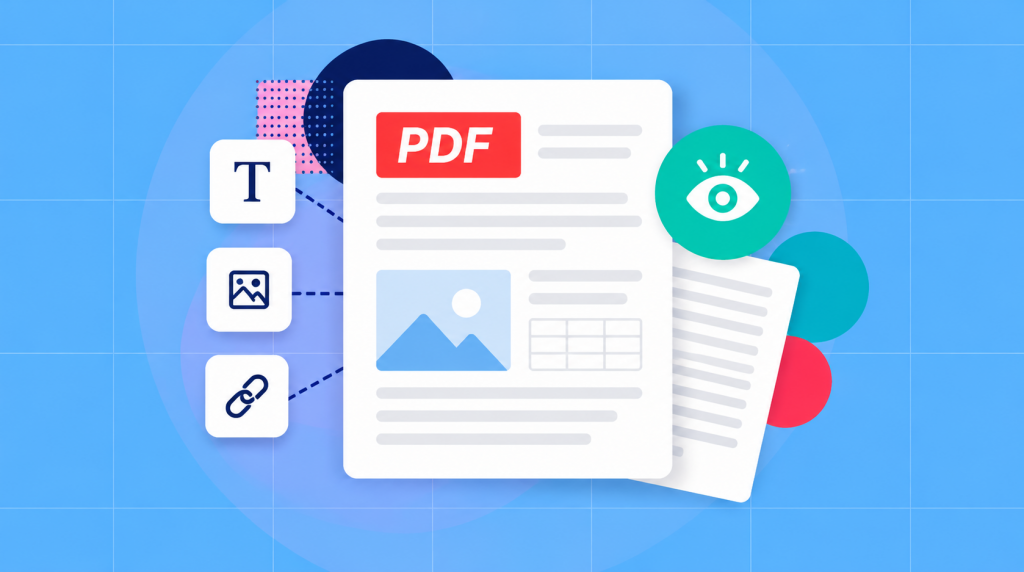
PDF stands for Portable Document Format. The goal of this format is to store a document’s pages in a fixed layout and can contain different kinds of elements like text, images, graphics and interactive parts. It’s most useful for sharing a finished document that, in theory, is “locked down”. Fortunately just because a document has a .pdf extension doesn’t mean the file is uneditable and it also doesn’t mean that its text is searchable or fully searchable.
A typed report, a scanned receipt, and an application form can all be built in PDF format. They might look similar on screen, but behave very differently when you try to select text, click a blank field, or make changes. The difference comes down to what’s actually stored inside the file.
What a PDF file contains
The word ‘portable’ describes the format’s purpose: carrying a page description between systems. A PDF records where its text and other elements belong, so a reader can display the document as pages. A page might contain a heading, a photograph and a table together. [1]
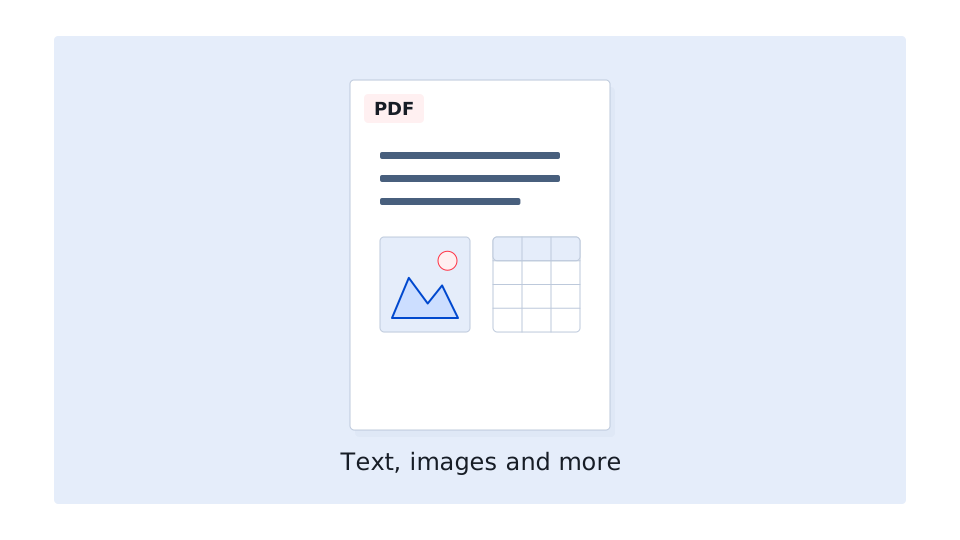
Some of the elements that make up a PDF document are stored as actual text or graphics, while others are stored as images made up of pixels. This distinction matters as you can usually select and copy a sentence from a report created digitally, but you might not be able to do the same with a scanned page where the words are part of an image.
PDFs can also contain clickable links, fillable fields, and other interactive elements. Sure, you don’t need to understand how all of this works behind the scenes just to read a PDF but knowing what the document contains can help you choose the right tool when you need to fill out a form, edit text, or make other changes.
When a PDF is useful
PDFs are particularly useful when you want a document to look the same for everyone who opens it. Think of a brochure with carefully positioned images, reports with numbered pages, or a receipt you need to keep for your records. By sharing a document in PDF, you preserve the document’s layout without worrying as much about how it will appear on someone else’s device. That’s the main purpose of the format.
PDFs are also a great format for document printing. Why? Well, the format makes it a lot easier to review the pages before printing to make sure everything is positioned correctly. Note, however, that you still need to choose the appropriate paper size and print settings since a PDF’s fixed layout doesn’t necessarily guarantee that it will print *exactly* as expected.
PDF, as a format, tends to be the correct choice of for sharing a finished document for someone to read or print. Of course if you expect to make substantial changes later, it’s worth keeping the original editable file as well. Just remember that saving something as a PDF doesn’t prevent others from editing it or automatically make its contents secure.
How a PDF differs from a Word document
Suppose you’re preparing a two-page event schedule. In Word, you can add another session, adjust the table and let the following paragraphs move down. That flexibility is useful while the schedule is still taking shape. A PDF copy records the finished page arrangement for people attending the event.
| Your task | Useful starting file |
|---|---|
| Rewrite a paragraph or reorganize a draft | The original Word document |
| Send a finished schedule for reading or printing | A PDF exported from the finished document |
| Collect answers in prepared fields | A PDF designed as an interactive form |
PDF editors can change many PDFs, but editing a page isn’t always as flexible as working in the original document. A scanned page adds another complication: its words may be stored inside an image. Our guide to what OCR does explains how recognition helps you work with those words.
The PDF types you might receive
The .pdf extension covers several kinds of document. These categories can overlap: a scanned document may later gain recognized text, and a report can contain both typed pages and scanned attachments. Look at what you need to do with each page rather than assuming every page behaves alike.
Fillable PDF forms
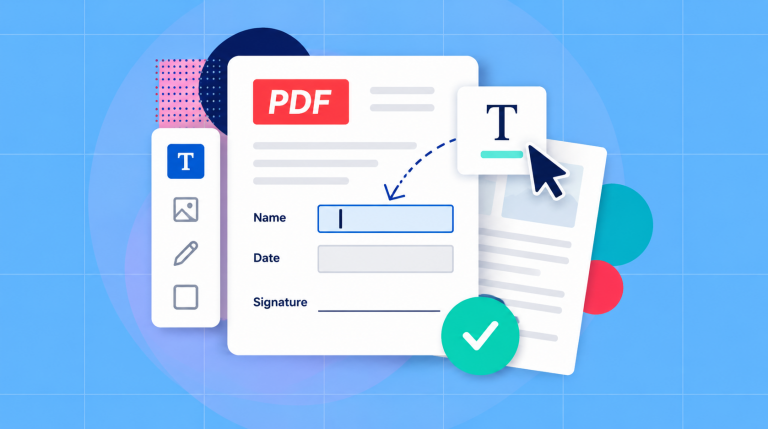
It’s true that some PDF documents might contain interactive form fields like text boxes and checkboxes, and they can allow you to enter information into the document you are reading directly. You can usually tell whether a field is interactive by clicking inside it and seeing whether a cursor appears or the field responds.
However, a blank line on a PDF isn’t necessarily an editable / fillable field, as confusing as that sounds. The field or blank like might just be part of the page’s design, no different than a line printed on paper. If you click on it and nothing happens, you’ll need to use a tool that lets you add text directly onto the page.
Soda PDF’s Fill & Sign module allows you to place text and marks on a form, even when it doesn’t contain interactive fields. Keep in mind that completing a form this way doesn’t turn it into a reusable fillable PDF it just facilitates adding your answers to the document. [4]
Scanned pages with image content
When you scan a document or take a picture of a printed page, the resulting PDF may contain an image of the page rather than actual digitally recognized text. This means that while you may be able to see and read the words you can’t actually select, copy, or search for them in the document.
That’s where optical character recognition (OCR) comes in. OCR analyzes the image and recognizes the words it contains, allowing supported software to make that text available for searching, copying, and other tasks. [3]
Not all scanned PDFs require OCR, however. Some scanners automatically recognize text when creating the file. An easy way to check is to try selecting a few words or searching for a word you can see on the page. If neither works, the document may need OCR, although restrictions on copying text can sometimes cause similar problems.
PDF/A for long-term preservation
PDF/A is a family of PDF profiles intended for long-term preservation. An archive may require a particular profile so documents remain usable over time. An ordinary PDF isn’t automatically PDF/A, and renaming a file or saving it again doesn’t establish conformance. [2]
Opening and working with a PDF
Start by opening the file in a PDF reader or a browser that supports PDF viewing. If a browser preview doesn’t offer the action you need, download the PDF and open it in the appropriate application. For a password-protected document, obtain the password from its owner.
Do you need to pay to open a PDF?
Basic PDF viewing is available in free readers and many browsers. Reading doesn’t require buying an editing application. Editing, conversion, OCR and other features can have different access requirements, so check the feature you need rather than assuming everything in a reader is included.
If you’ve received a PDF, identify the next task first: read the pages, complete the form, or work with the text. That choice tells you which kind of tool to open.