Quick answer
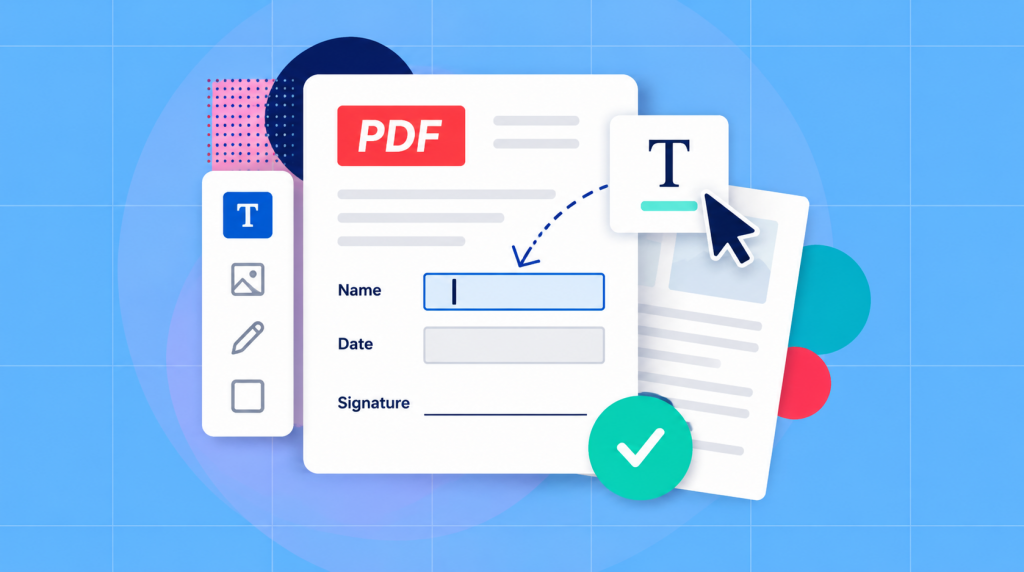
In some cases you can type on a PDF just by clicking an interactive form field and entering your answer / text. If the page has no actual form field, you can use an Add Text or text-box tool to place your response. Save the copy containing your changes and reopen it to check that the answers are still visible.
Like so many others, you may have found yourself opening a PDF form expecting to type your name or other information into a blank space, only to discover that clicking it does nothing and editing it doesn’t seem possible. This is a common frustration that is the result of PDF document itself not having interactive fields that actually allow you to enter text directly.
Fortunately, you can still fill out the form without having to recreate it. Using a PDF editor like Soda PDF, you can add text directly over the blank spaces, even if the original document wasn’t built and designed to be filled out digitally.
Check why clicking the blank line does nothing
Just because a PDF has a blank line or an empty box doesn’t necessarily mean you can type directly into it. While some PDFs have fillable fields that actually let you click and enter text, you’ll often find that others simply have blank spaces printed on the page with no way to fill it.
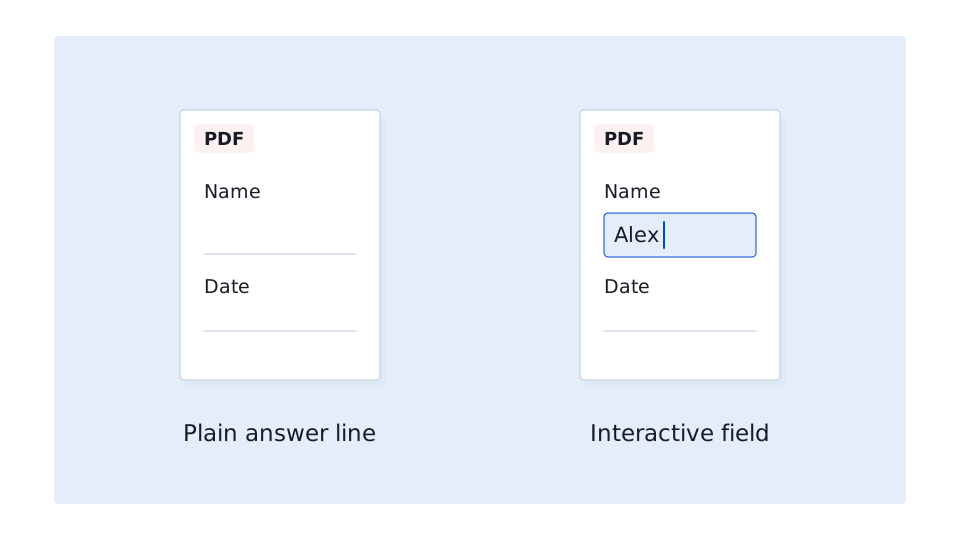
To find out which type you’re working with, you should open the PDF and click where you want to enter your answer then, if a text cursor appears, you can start typing. If nothing happens chances are that the PDF probably doesn’t have a fillable field in that spot.
This doesn’t mean you can’t still add your answer. For instance you could open the PDF in an editor like Soda PDF and use the Add Text tool to place a text box over the blank line. This approach also works for scanned forms, even if the document is just an image of a printed page.
If you find that you can’t add text or save your changes the PDF document you’re trying to edit may have editing restrictions. In that case, ask the sender for an editable version. You can also try downloading the PDF and opening it in a PDF editor instead of viewing it as an email attachment, since attachment previews often have limited editing features.
Type into an existing form field
You can use this route when the form already has interactive answer fields. If a form field is present all you need to do is simply click a text field and type. Choose checkbox and radio-button answers using their controls rather than drawing marks over them. [1]
Make sure you keep your answer within the space the field allows. If a long address is clipped, inspect the whole answer before saving or ask for a form that accommodates it.
Add a text box when there is no field
For a flat page, create a text box where your answer belongs. In Soda PDF you can open a working copy of the PDF and go to the blank line. Confirm that your edition includes the editing feature. The text box adds page content; it doesn’t create a reusable form field. [2]
The short recording below shows a name being entered on a flat form in Soda PDF. With the sample already open, it follows these steps:
- Choose Edit, then Add Text.
- Click just above the blank Name line to place the text box.
- Type Alex, or enter the answer needed for your own form.
- Switch to View mode to inspect the answer’s placement.
- Click Save to keep the response in your working copy.
Matching the font already on the page
When adding text to a PDF form its usually a good idea to try to match the font size and style of the surrounding text so your answers look like they belong on the page.
You can always adjust the font, size, and color using your PDF editor’s text formatting options. Of course black text in a simple, easy-to-read font is usually the safest choice.
Keep in mind that usually the most important thing is that your answers are clear, fit comfortably in the available space, and are easy to read.
. [3]
Type on a PDF in your browser
For an upload-based route, you can always open your file in Soda PDF Online, choose Edit > Text and click the answer area. Enter the response and inspect it before exporting.
What Chrome will and will not let you do
Chrome’s current computer PDF viewer supports adding text as well as filling paperwork. Open the PDF in a full viewer tab. Choose Add text, set the font, style and color in the sidebar, then click where the response belongs and enter it. To keep the answers, choose Download > With your changes. [5]
These controls place new text; they aren’t a method for rewriting the document’s original paragraph. If your viewer doesn’t show Add text, use the Desktop text-box method above or a suitable online editor. Confirm the downloaded result rather than assuming an answer visible in the tab has been saved.
Type on a PDF on your phone
If you’re using an iPhone you can typically make use of the Preview app, open the PDF in Preview and tap Markup. From there you need to tap the Add button and choose the text option. In Markup, Add Text creates a box; tap it and use the keyboard to enter your answer. Use the text tools to adjust its size and style, then tap outside the box and close Markup with Done or the Markup button. [6] [7]
This example applies to current iPhone Preview and Markup controls. Other phone apps, including Android viewers, have their own tools. Look for support for form filling or text annotations in the app you’re using. If its controls are unclear, finishing the PDF on a computer may be easier than trying to position a small answer on a narrow screen.
Save the copy with your answers
Before sharing, open the saved or downloaded PDF from its folder. You’ll want to review and check every answer at normal reading size: is the name above the line, is the date complete, and are any field values clipped etc.. ? If the answers disappear then return to the app and use its save or export route that includes changes.
Give the completed copy a recognizable filename, such as application-completed.pdf, and keep the blank original. When attaching it to a message, open that attachment once to confirm you selected the copy with your answers.
Whether your PDF has fillable fields or not, with the right tools you should find adding your answers to be relatively painless and straight forward. Just be sure to save your changes and make sure you thoroughly review the completed document before sharing it.