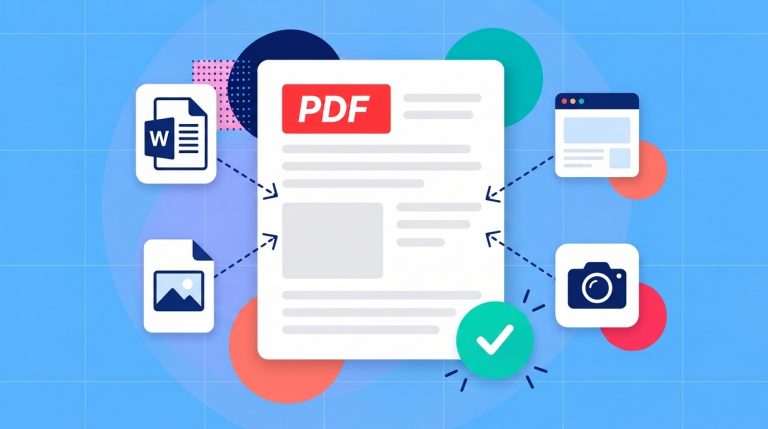
Simply put: you can edit a PDF without Adobe Acrobat by using another PDF editor. For instance Word can convert a mostly text PDF for rewriting, Google Docs can be used to select and extract text, and even something like Mac Preview can do things like add annotations and fill forms. You need to choose a tool that supports your specific change or workflow and then check that you can save the finished file.
Let’s say you need to make a correction or change in a PDF document but you’d rather not install Acrobat or pay for another subscription just to make a few changes.. a PDF editor such as Soda PDF is one such option you could consider. Before choosing a tool, though, you’ll want to think about what you actually need to do: replace a sentence, fill in a blank or leave feedback etc…
Each type of edit will call for different features. For example an app that lets you add notes might not let you change the paragraph underneath them. So begin with the end result you need to achieve, and then check whether the tool lets you complete and save that change under its free or paid access options.
Choose an alternative for the change you need
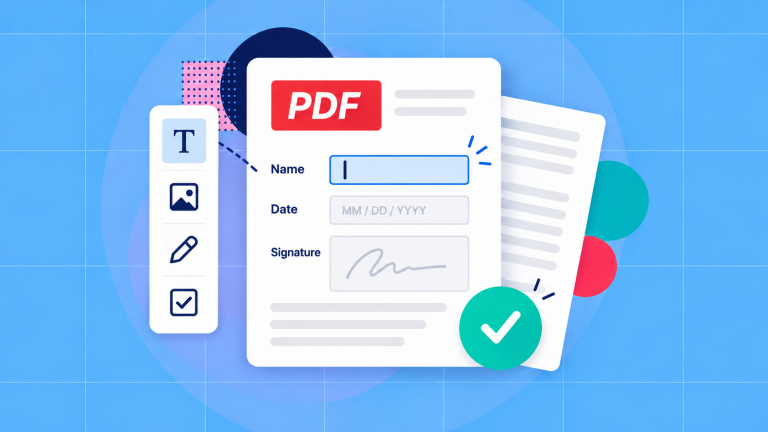
Correcting a misspelled word requires a tool that can edit existing text. Adding a missing reference number may only need a text box. If you’re completing a form, try clicking its fields first. And when you’re reviewing someone else’s draft, annotations let you suggest changes without altering the original wording.
You might find that you already have an application that can handle the job, in theory. That will save you an installation but the way it works matters too. A word processor may convert the PDF into a new document which means it can also potentially change its layout whereas a dedicated “PDF editor” lets you work directly with the elements already on the page.
Match the editor to the task
Think about how closely the finished file needs to resemble the original. While something like a simple notice leaves more room for layout changes, a different document type like a brochure would need to preserve carefully aligned columns. For a document like a brochure – whose layout needs to stay intact – we recommend you start with a small edit in a PDF editor and check the result.
The file itself matters, too. If it’s an image-only scan, its words need text recognition before you can edit them as text. If editing is restricted, ask the owner for the necessary permissions or an editable copy. Choosing a different app won’t automatically remove those obstacles.
Edit a PDF in a browser
An online editor can be convenient when you want to make a change without installing software, provided you’re allowed to upload the document. Soda PDF’s editor page lets you select a file from your device, Google Drive or Dropbox. Choose the appropriate location, open your PDF and wait for it to appear in the editor. [1]
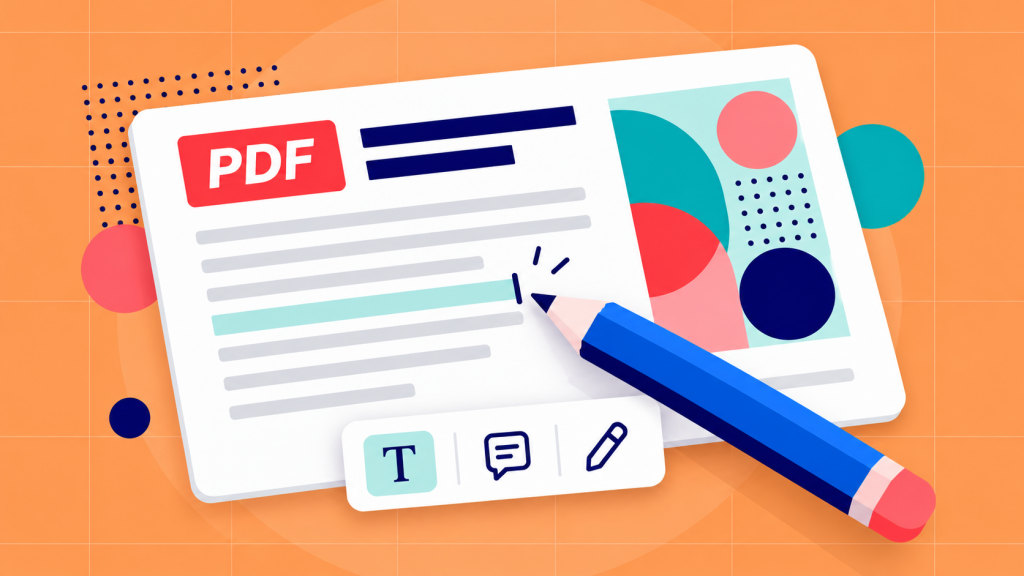
To add a new label in Soda PDF Online, choose Edit, then Text, and click where the label belongs. Type into the box and use the text toolbar for its size or color. This is the Online control sequence; the Desktop feature is called Add Text. [2]
Review the edited page before choosing Export file. The editor’s current FAQ says a subscription is required to save, download, print or email the result, even when trial editing is available. Check that requirement before spending time on a long document; a preview isn’t the finished PDF you need to send. [1]
Edit a PDF on your desktop
A desktop PDF editor is useful for all kinds of tasks, including correcting the existing text without converting the document to another format. To illustrate what this process is like, we’ve documented the steps you would take if you were using Soda PDF Desktop:
- Open the working PDF in Soda PDF Desktop and find the paragraph you need to correct.
- Switch to Edit mode and click the existing text to enter its text box.
- Select the mistaken word or characters and type the replacement. Keep punctuation that still belongs in the sentence.
- Switch to View mode and check the changed line, the lines below it and any nearby image or heading.
- Save an edited copy with Save As, then open that saved filename to confirm the correction.
It’s recommended to start the edit with a short correction and if the new letters look different you’ll want to check their font and size. This is because a font embedded in the PDF may not be installed on your Windows computer which can cause added characters to appear in a substitute font that looks obviously “off”. [4]
If you’re adding information rather than replacing words, use Edit > Add Text and click an empty area. [3]
For longer revisions it’s usually best to ask for the source document so you can edit it directly as rewriting several paragraphs in the original file is going to be a lot easier than rearranging individual text boxes in a PDF. Once you’re done, export a new PDF and check the layout throughout.
Use Word, Google Docs or Preview when they fit
Word and Google Docs for rewriting
If the PDF you are looking to edit is mostly just text, and you have a supported version of Word, chances are you can make your changes in Word itself. Choose File > Open and select the PDF. Word should convert it into an editable document (it doesn’t edit the original PDF directly). That conversion can affect tables, graphics and more complex layouts, and some pages may appear as images. When you’ve finished, save or export the document as a PDF and compare it with the original. [5] [6]
Similar to Word, Google Docs can also work when you need the text but are less concerned about preserving the original page layout. The process involves uploading the PDF to Google Drive, right-clicking it and choosing Open with > Google Docs. You can read through the extracted text carefully and restore any missing formatting or structure. Columns, tables and footnotes may not transfer correctly. Once the document is ready, choose File > Download > PDF Document. [7] [8]
Preview for forms and markup
Preview on Mac is a useful built-in route for entering answers and marking up a PDF. Open a duplicate, click a form field and type. If the form has no usable field, show the Form Filling toolbar and choose the Text Box tool. Preview can add text and annotations, but it can’t rewrite the PDF’s existing body text. Use a PDF editor for that correction. [9] [10]
Check access and file handling before uploading
A tool described as free may limit the task you can finish. Look for the exact feature you need, account requirements and export conditions. Word access can depend on your existing license; having Preview on a Mac doesn’t make it a complete text editor. Avoid choosing on the headline alone.
Files uploaded to a server
If you’re working with or editing your employer’s document you should check your organization’s rules and the provider’s current file-handling policy before uploading it. Use an approved local application if the file can’t be shared with an online service. Whichever route you choose, keep the original and reopen your finished PDF to confirm that the changes saved correctly and the layout still works.
Sources
- Soda PDF — PDF editor
- How to add text to a document? – Soda PDF
- How to edit text in a PDF document? – Soda PDF
- System and document fonts in Soda PDF Desktop – Soda PDF
- Microsoft — Opening PDFs in Word
- Microsoft — Save or convert to PDF or XPS in Office desktop apps
- Google — Convert PDF and photo files to text
- Google — Create, view, or download a file
- Apple — Fill out and sign PDF forms in Preview on Mac
- Apple — Annotate PDFs in Preview on Mac