To edit or change a scanned PDF, you’ll need to first verify if the document already contains selectable text. If it doesn’t contain selectable text you can use OCR (optical character recognition) to recognize the words on the page. You can then open the recognized PDF in Edit mode and make whatever changes you want. Keep in mind that OCR doesn’t always make the original scanned text directly editable, so you may also need to convert the document to Word or a similar editable format to change the actual content.
Ok, let’s say that you’ve opened a scanned PDF and need to make a few corrections to the text. When trying to select the text you discover that the entire page gets highlighted. This happens because a scanned document is basically an image of the original page vs not a document with editable text.
The good news is that you don’t have to recreate everything from scratch. An OCR PDF tool like Soda PDF can recognize the text in a scanned document thereby enabling you to select, search, and work with the text inside the document.
The process is fairly simple, but there are a few things worth checking before you start. For instance you’ll need to confirm whether the document needs OCR, then choose the right editing method, and finally review the output to ensure nothing was lost or changed unexpectedly.
Why the page acts like an image
When you scan a “hard copy” of a paper document your scanner captures an image or photo of the page, including all its words, graphics, and formatting. The resulting PDF file may look the same as regular digital document, however there’s an significant difference: the words are part of an image rather than individual characters.
That’s why you might find that clicking a word in an image-only PDF ends up selecting the entire page instead. Your PDF editor sees a picture, not content or text that it can change. Soda PDF’s help documentation identifies this behavior as a common sign that a document contains scanned pages.[1]
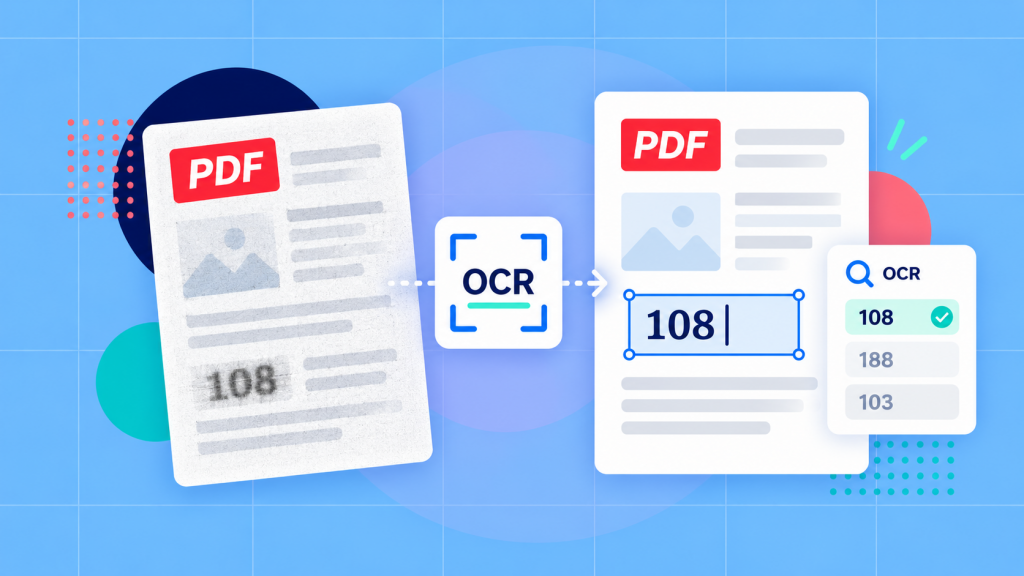
The purpose of OCR is to help bridge that gap. It will analyze the image, identify all the letters and words, and create a text “layer” that software can actually recognize. Depending on how the PDF is processed, the original scanned image may remain in place with recognized text layered over it.
This distinction matters when you want to edit something. After all, just recognizing the text doesn’t necessarily mean you can replace the original words as easily as you would in, say, a Word document.
Check whether recognition is already present
Before running an OCR tool, we recommend that you take a moment to check whether the PDF * already * contains recognized text. You might not need to process it again.
You can test this by opening the document in a PDF viewer / editor that supports text selection and try highlighting a short phrase. You can also use the viewer’s search function and look for a distinctive word that appears on the page. If you find that you are able to select individual words or find them through search, the PDF already contains at least some recognizable text.
Also, you should note that some documents will contain a mixture of scanned and digitally created pages. If you’re working with a longer PDF, it’s worth checking more than one page.
Now, selectable text is a good sign but it doesn’t actually guarantee you can edit what you see. For instance the document might contain a hidden OCR layer behind the original image, and that layer may have recognition errors of its own.
There are also situations where copying or editing is restricted by the PDF’s security settings. If you encounter those restrictions, check with the sender before proceeding. Being unable to copy text doesn’t automatically mean the document needs OCR.[2]
Recognize the text
If you’ve confirmed that the PDF needs OCR, the next step is to recognize its text.
The instructions below use Soda PDF Desktop. Before starting, make sure your edition includes OCR and text-editing capabilities.
It’s also helpful to understand that OCR and editing are two separate steps. OCR identifies the text in the scanned image. You’ll still need to open the recognized document and make your changes afterward. For a closer look at the technology, see what OCR does and when you need it.
Choosing the right language setting
You’ll find that OCR works best when it knows what language to expect. Before processing your document, click the gear icon in the top-right corner of Soda PDF to open Options. Select the OCR tab, then set Language for Recognition to match the language used in your scan. [3]
If the scan is in some way sideways or crooked you’ll need to review the Desktop orientation settings, including Deskew and Rotate Page. These can help prepare the image for recognition. A clearer original document is worth building or requesting when you find letters are blurred or cut off since a setting change isn’t enough to supply a missing part of the page.
The demo below uses an image-only PDF already open in Soda PDF Professional. It shows the scan-detection route and saving the recognized result. The clip stops before text correction:
- Choose OCR. The app detects that the page is a scan.
- Click Recognize text.
- Wait for the recognized PDF to open.
- Click Save, choose an output filename and save the recognized PDF.
You can also set it up to recognize specific pages rather than the entire document. This can be done by going to OCR > Document, selecting the pages you want to process, and then choosing “Recognize”. Soda PDF opens the recognized file in a separate tab, leaving your original document unchanged.[1]
This can be extremely helpful when you only need to work on a few pages of a larger scan. Soda PDF also offers Auto and Manual recognition for individual images, although those options work within the existing PDF rather than creating a separate recognized document.
Edit the recognized page
Once the OCR recognition is complete you can open the resulting PDF and switch to Edit mode.
If the recognized text is editable, click inside the relevant text box and choose the specific characters you want to change or edit. Type your replacement text and then review the surrounding characters and content to make sure everything still reads correctly. [4]
If the edited word looks different in some way you should compare its font and size with the surrounding text. This is a common issue as font availability can impact newly entered characters. Sometimes you might find that a longer replacement will wrap text differently, so look at the next line and the box’s lower edge before moving on. [5]
If changing the recognized text leaves the original scanned words visible, pause and inspect what you’re editing. You may be working with text behind the image. Adding a second text box over those words doesn’t establish that the original wording has been removed. For a visible rewrite, use the Word export route in the final section, then create a new PDF from the edited document.
Check likely recognition errors
OCR is incredibly useful, but that doesn’t mean it’s perfect. Even a clear scan can contain characters and text that are difficult for some applications to distinguish, especially if the original document used small type or an unusual font.
For example, a room number printed as 108 might be recognized incorrectly. The surrounding sentence could look perfectly normal, making the mistake easy to overlook.
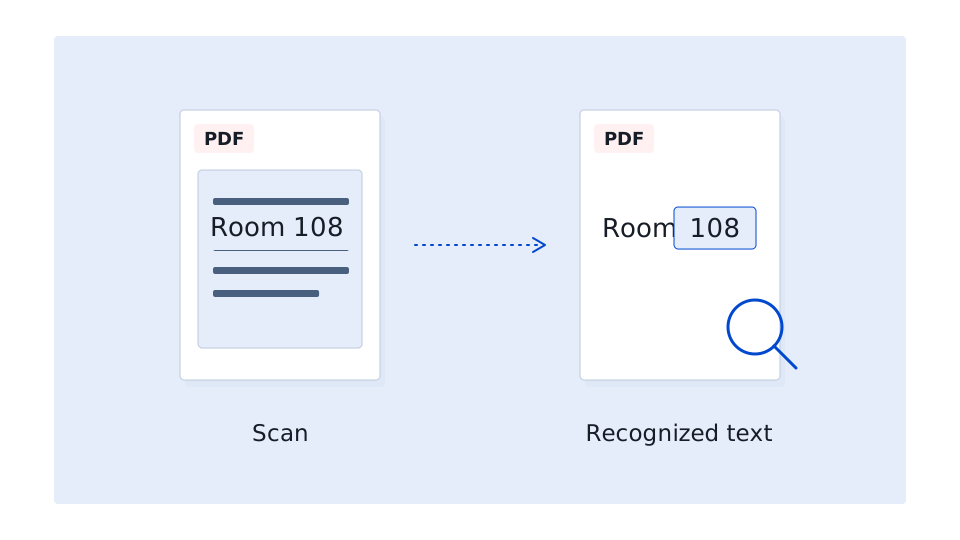
That’s why it’s worth keeping the original scan available while you work. Once you’ve made your correction, compare the edited section against the source rather than assuming everything else was recognized accurately.
Numbers, tables and handwriting
You’ll probably discover, at some point, that certain types of information deserve extra attention.
We recommend you review the edited document by starting with dates, prices, reference numbers, and other details where a single incorrect character could cause confusion. Closely examine digits, decimal points, and punctuation. Don’t completely depend on reviewing whether a sentence makes sense as a number can look plausible and still be wrong.
Tables can be especially challenging because OCR has to interpret both the text and its layout. You need to verify that each value appears in the correct row and column, especially if the original table contains narrow cells or closely spaced numbers.
Handwriting would present another difficult challenge. Recognition software may struggle with things like unusual letter shapes, cursive writing, and notes added in the margins of the document. If the meaning isn’t clear, compare it with the original image and ask the document’s author for clarification rather than making an educated guess.
Export to Word when you need larger changes
Occasionally you’ll find that a scanned PDF needs more than a small and quick correction. You might need to edit several paragraphs or make multiple changes that alter the layout of the entire page.
In those cases, converting the document to Word is often simpler than trying to edit the recognized PDF directly.
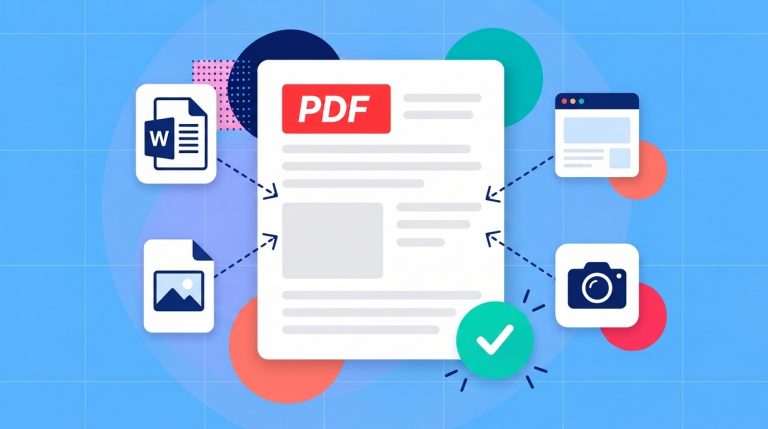
Soda PDF Desktop offers this option through Create & Convert > PDF to Word. When converting an image-based PDF, enable the Use OCR option so the software can recognize the scanned text during conversion. Choose the pages you want to include, review your output settings, and select Export. Keep in mind that OCR access may be required. [6]
Once the conversion is complete, open the Word document and review the results again before you start editing. You especially want to check that the text appears in the right order and that tables, columns, and other formatting have been as well preserved as possible.
You can then make your changes using Word’s regular editing tools, without having to work around the original scanned image.
When you’re satisfied with the result, save the editable Word file and export a new PDF for sharing. Open that final PDF one last time to confirm your changes appear correctly and that the surrounding text and formatting still look the way you intended.