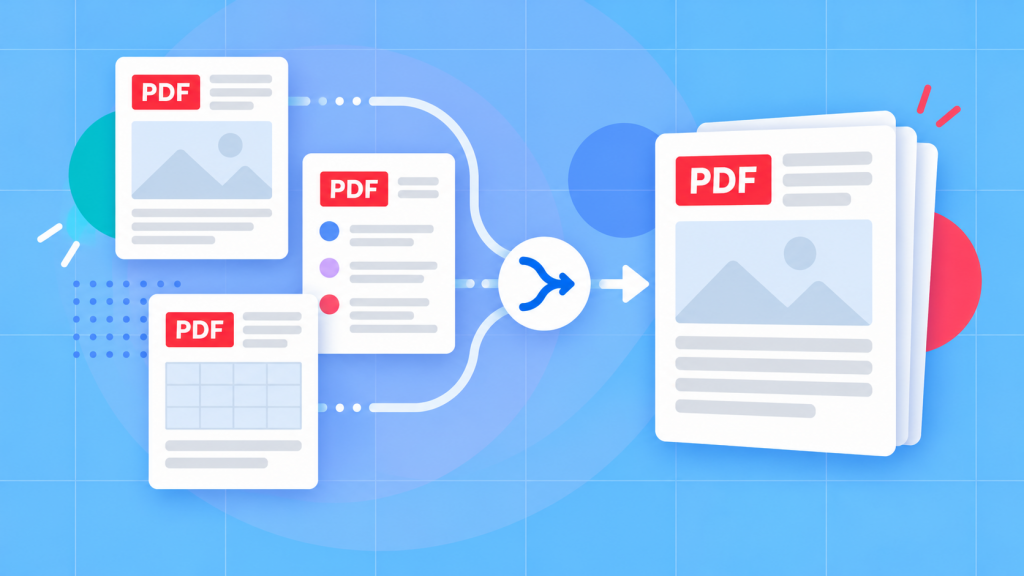
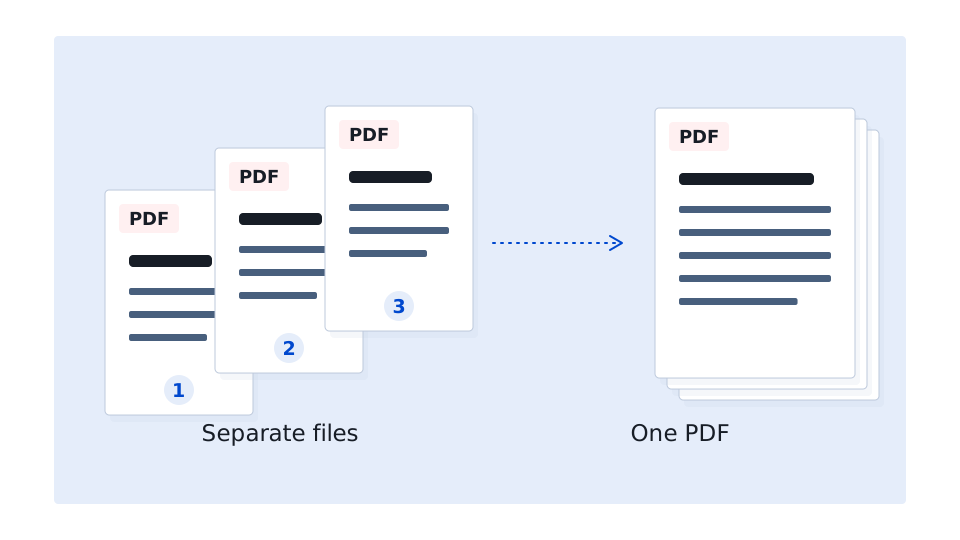
To merge two or more PDF files, add them to a PDF merger, arrange them in the order you want, and then build and save the combined document. Once the merge task is complete, you can open the new PDF and check that every file appears in the right place. Soda PDF offers both an online Merge PDF tool and a separate merge workflow in Soda PDF Desktop.
Sending a report, appendix and several scans as separate attachments can be annoying as it means the recipient has to figure out how everything fits together. A better option is to combine them into a single organized document / PDF file. Soda PDF’s merge PDF tool lets you bring multiple PDFs together and control the order before creating the final file.
Before beginning, decide which document should appear first and keep the original files somewhere safe. That way, if you need to make a correction later, you can still update the source document(s) rather than trying to reconstruct it from the merged version.
For two PDFs that are already prepared, the online tool is usually the quickest option. If you’re working with several scanned documents or building a larger packet, Soda PDF Desktop gives you more control over the file list before you merge.
Combine two PDF files
Now, if all the documents you’re working with happen to already be in PDF form the online Merge PDF tool is a straightforward place to start. Just make sure to save the files somewhere easy to find first rather than trying to work with attachments still sitting inside separate emails.
- Open Merge PDF and use Choose file, or drag the two PDFs into the upload area.
- Arrange the uploaded documents so the first one contains the opening pages.
- Complete the merge and download the combined PDF to your device. [1]
- Open the download and check the transition from the first document to the second.
Give the finished PDF document a name that describes what it contains, such as “project-report-with-new-table.pdf”. A distinct filename will make it a lot simpler to tell the complete packet apart from either of the original files.
Soda PDF’s website tool and the full Desktop application use different controls. If you’re working with more files or several scanned pages, you may find that the Desktop workflow may be more convenient.
Combine several files or a folder
In Soda PDF Desktop, go to Create & Convert > Merge to open the merge file list. [2] In the example below, three scanned pages have already been saved as individual PDFs. They can now be combined into one document without rescanning anything.
- With the empty Merge panel open, click Add files.
- Select the three scanned PDFs and click Open.
- Review the order of the files, then click Merge.
- Open the Page overview and confirm that the result contains all three pages.
- Click Save, enter a filename and save the combined PDF.
When you’re working with your own files, compare the page count in the finished PDF with what you expected to include. For instance, three one-page scans should produce a three-page document. If you discover that one of the source PDFs contains several pages then counting the files alone won’t tell you how long the final saved document should be.
Merging a whole folder at once
If you’ve already collected all the documents for a packet into one folder, you can add them together in Soda PDF Desktop. Use the plus control and choose Add folder. The same menu also includes Add Files and Add Opened Files.[2]
This can save time when you’re working with a larger set of documents, but be mindful that a folder may contain an older version of a report, a duplicate scan or another file that isn’t intended to be included.
Remove anything you don’t need using the trash icon beside that file.[2] Keeping unrelated documents outside the packet folder can also make this review much easier.
Set the document order before merging
The order of the source files determines the order in which readers will see the documents in the finished PDF. A report might come first, followed by supporting evidence and then an appendix etc… Pages that you scanned should usually follow the same sequence as the original paper document.
File names can help you recognize the documents, but don’t rely on them to determine the final sequence. Check the actual merge list before creating the PDF.
Reordering before you hit merge
In Soda PDF Desktop, drag the file entries into the sequence you want them in. In addition, you can use the dropdown under each page to include All pages or specify a Range. [2]
Page ranges are useful when you only need a portion of a longer document to be included. For instance, a supporting report might contain 30 pages but only pages 8 through 12 belong in the final document you want to save.
Review those page positions in the original PDF before merging and keep in mind that printed page numbers don’t always match the document’s actual page positions (especially true when a file includes a cover page, contents page or other introductory content).
If you’ve already merged some pages or documents and later need to separate them again, you can always split the PDF into individual sections. Naturally you’ll need to know where each section begins and ends as a merged PDF doesn’t retain information about which pages originally belonged to each source file.
Combine PDFs with Office or image files
If your packet also contains non PDF files like spreadsheets, images, or Word documents then make sure to convert those files to PDF first. This way you end of up with a consistent set of files to work with and lets you catch any formatting problems before completing the final merge.
For a Word document saved on a Windows computer, choose File > Save a Copy > Browse, select PDF and save the new version. In Excel, choose File > Save As or Save a Copy, select PDF as the file type, then use Options if you need to control which sheets or content are exported.[3]
Open each exported PDF before merging it. Check that the report pages, tables or worksheet content look the way you expected.
For JPG or PNG images, you can make use of the corresponding Soda PDF image-to-PDF tool to convert each image first. Once the conversion is complete you’ll just need to download the new PDF and check its orientation, size and legibility before adding it to your merge.[4][5]
Keep in mind that simply converting an image into a PDF doesn’t automatically make the text inside that image searchable or selectable. A photographed or scanned image will likely still behave like an image unless OCR is applied separately.
Check numbering and navigation in the result
Once the merge job is complete and you start to review make sure that you don’t just check the first page. Closely examine the points where one source document becomes another. These transitions are often where missing pages, duplicate covers, or documents in the incorrect order become obvious.
Check the final page as well. Seeing the correct opening page doesn’t guarantee that the last appendix or attachment made it into the finished file.
Page numbers and bookmarks after merging
Think about how you want page numbers to work in the final document. In some packets, each original document keeps its own numbering. In others, one continuous page sequence makes more sense.
If multiple sections begin with page 1, make sure the document structure or table of contents makes that clear to the reader.
Also be sure to test table of content links, bookmarks, or other navigation links you expect people to use when they view the document. Combining PDFs can change the document around them, so it’s worth confirming that important links still lead to the intended pages.
Handle common merge questions
A digitally signed PDF will need some extra care. Soda PDF notes that merging certificate-signed PDFs cannot preserve the validity of existing certificate signatures and may remove signatures or prevent certain signed files from being included. [6]
If you’re preparing a document that is going to ultimately require signatures, it’s typically better to assemble the final packet first and then complete the signing process.
If a file can’t be uploaded, converted or merged, read the message shown for that specific file or account. Different Soda PDF tools and workflows can have different requirements or usage limits, so don’t assume the same restriction applies everywhere.
A PDF that won’t open properly on its own should also be fixed before it’s added to a larger document. If possible, it’s worth asking the sender for a new copy instead of merging a file that may already be damaged.
The goal is simple: one clearly named PDF, with every document included once and arranged in the order the reader expects.